iSMS WhatsApp Business API
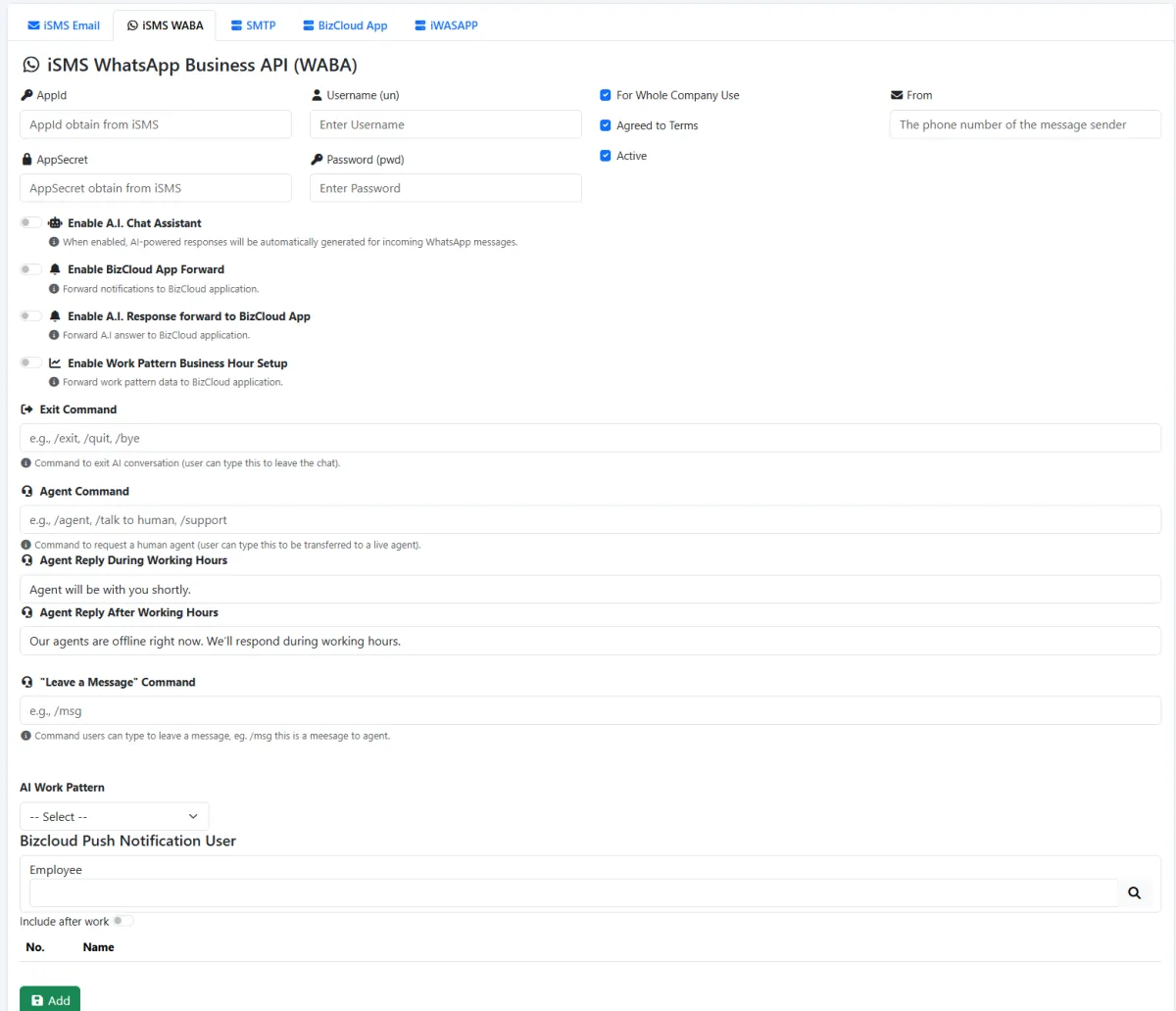
Connect the WABA channel with the issued App ID, App Secret, username, password and sending phone number.
Connect iSMS WhatsApp Business API, enable AI-assisted replies, route conversations and notifications to BizCloud agents, and improve service with a shared inbox, complete history and measurable response KPIs.
Connect iSMS WhatsApp Business API, enable AI-assisted replies, route conversations and notifications to BizCloud agents, and improve service with a shared inbox, complete history and measurable response KPIs.
Connect the WABA channel with the issued App ID, App Secret, username, password and sending phone number.
Mark the WhatsApp account active and make the approved WABA connection available for whole-company use.
Enable automatically generated AI responses for incoming WhatsApp messages.
Forward incoming chat notifications to the BizCloud companion app so mobile agents can stay informed.
Send AI-generated response notifications to BizCloud App for operational visibility.
Apply an AI work pattern and forward work-pattern information to BizCloud App.
Select which employees receive BizCloud push notifications and optionally include after-hours coverage.
Define the words customers can type to request a human agent, such as /agent or /support.
Define the command a customer uses to leave or reset the AI conversation.
Let customers leave a message for the team when a live handover is not immediately available.
Set the message customers receive when an agent is expected to take over during business hours.
Set a different response that explains when the team will return.
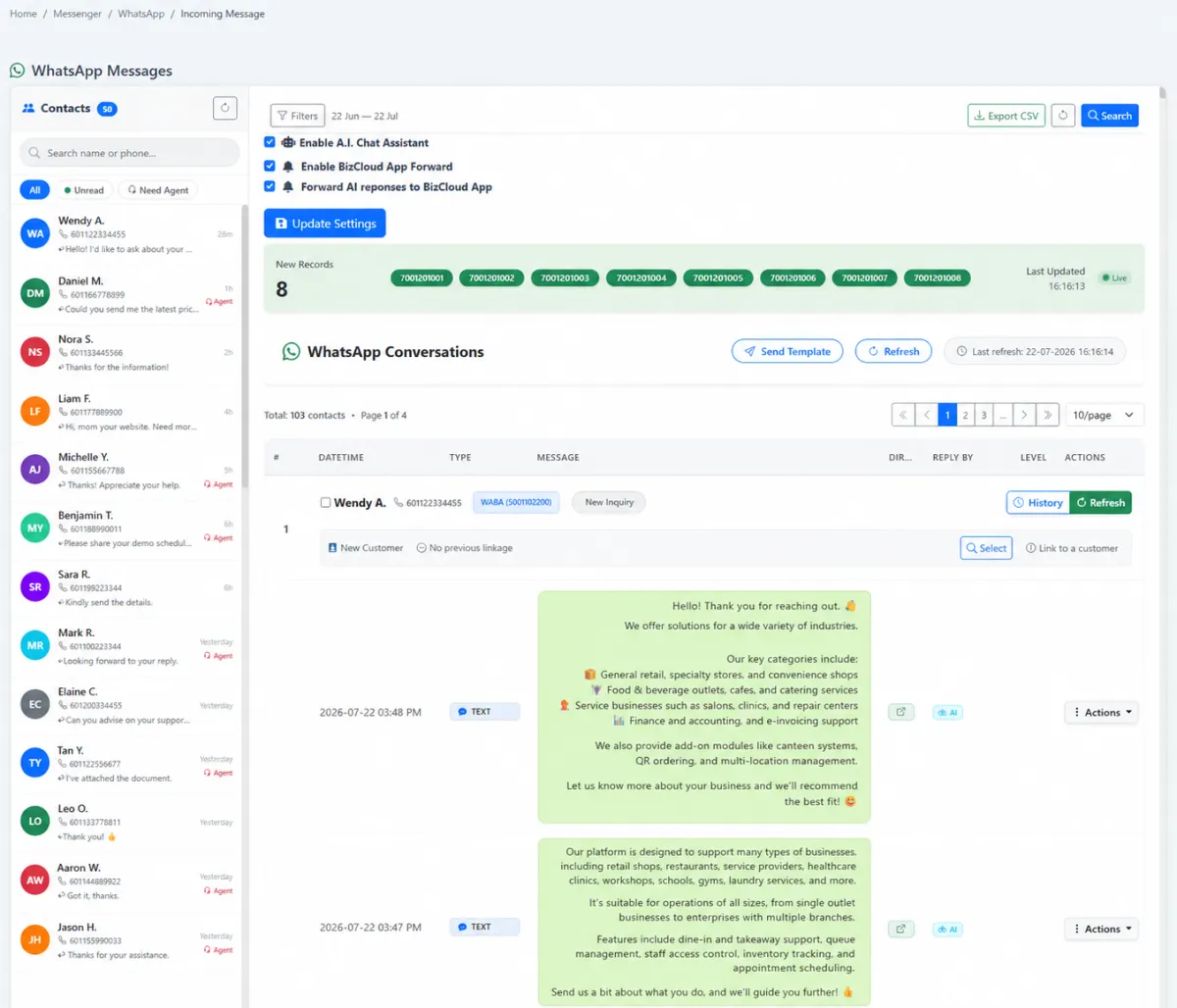
Review WhatsApp conversations from one workspace where either AI or an agent can reply.
Search contacts and separate all, unread and needs-agent conversations.
See new-record counts, message identifiers, last update time and live status.
Enable AI Chat, BizCloud forwarding and AI-response forwarding directly in the incoming-message workspace.
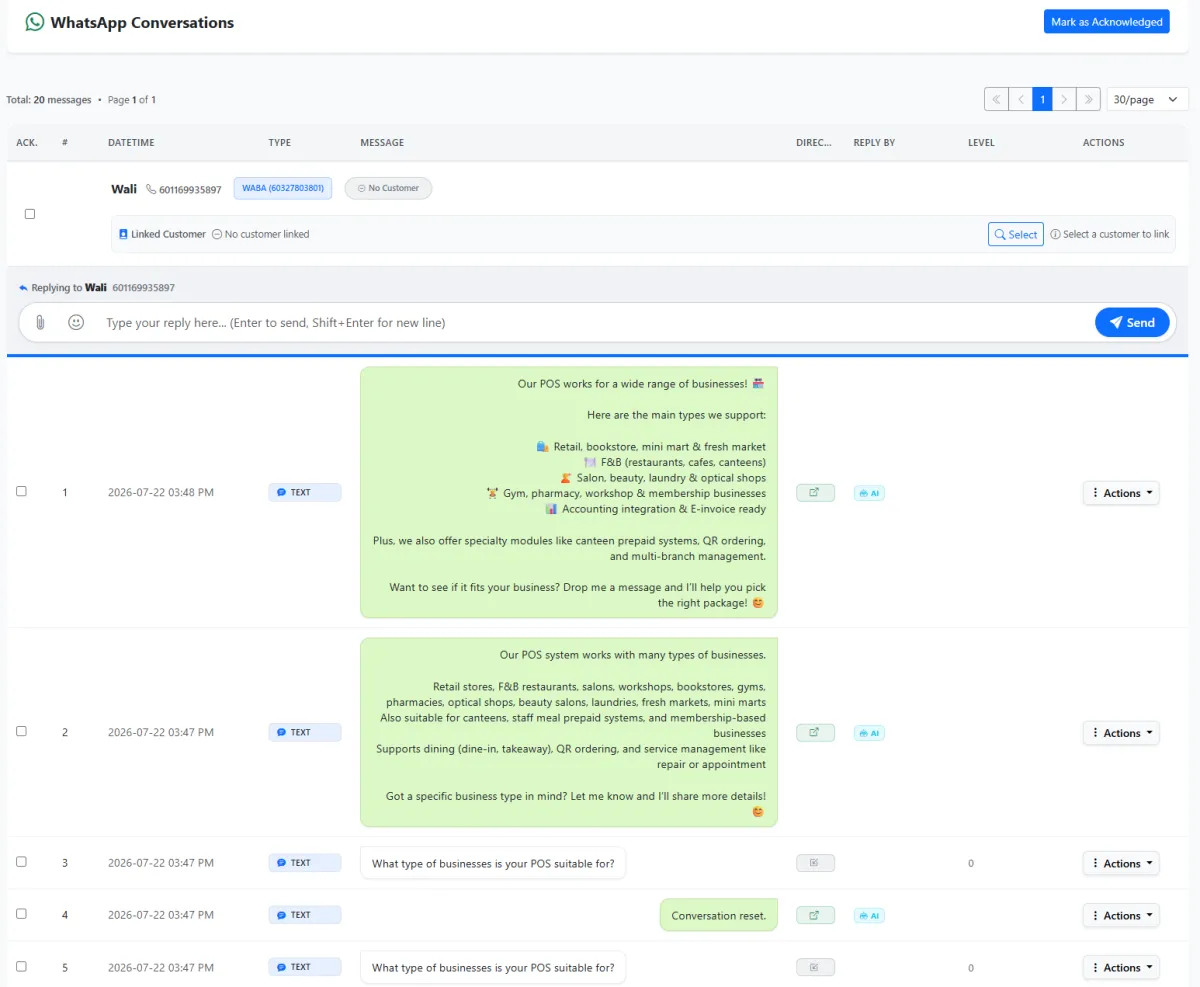
Identify a new sender and link the WhatsApp conversation to an existing CRM customer when appropriate.
Reply from the conversation view, add an attachment or emoji, and use approved WhatsApp templates.
Review message time, type, direction, responder, escalation level and available actions in sequence.
Mark reviewed conversation records as acknowledged to support operational follow-through.
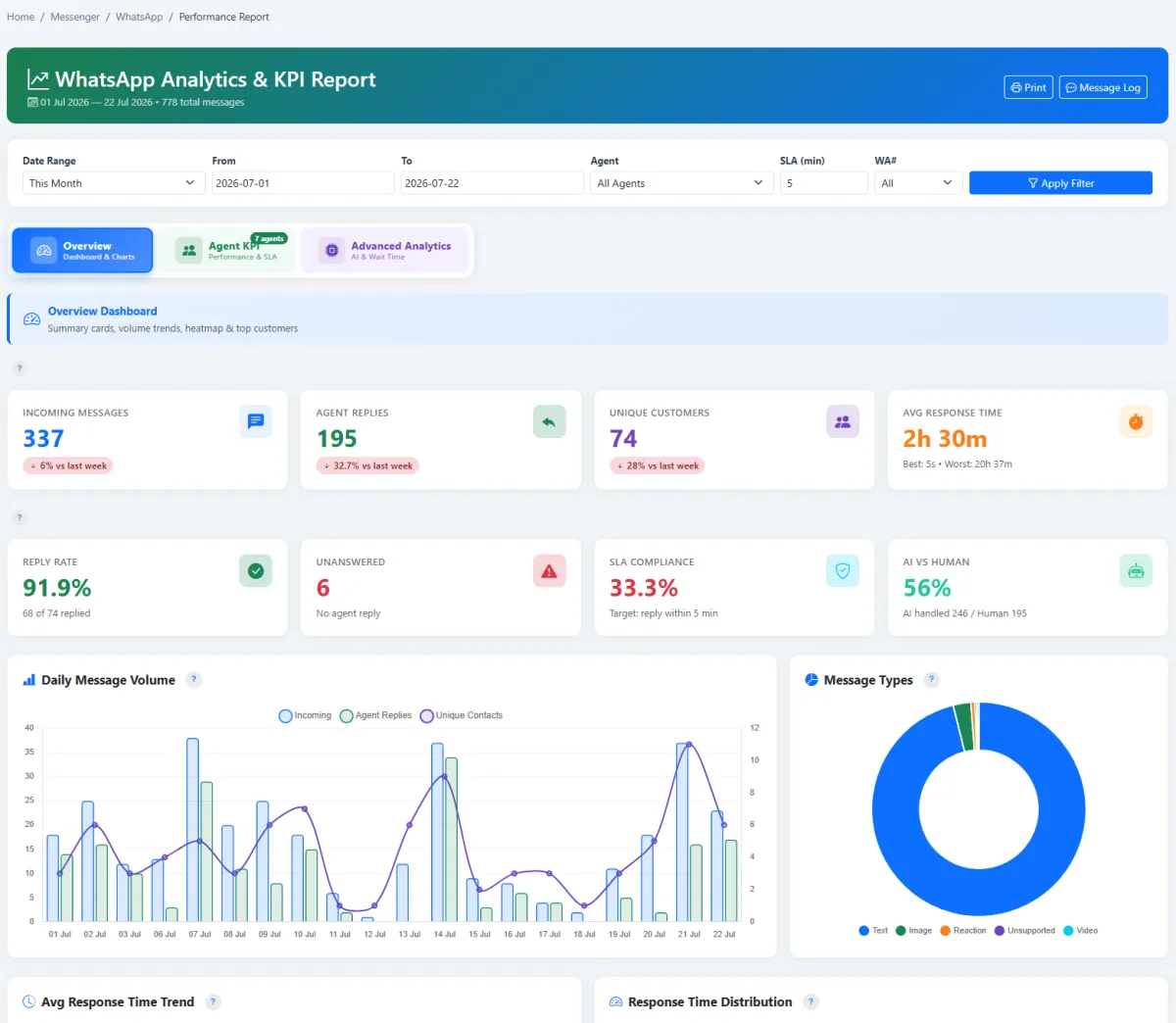
Measure incoming messages, agent replies, unique customers, average response time, reply rate and unanswered volume.
Choose an SLA target and track compliance across a date range, agent or WhatsApp number.
See how much conversation handling was completed by AI compared with human agents.
Move from the overview into agent performance, SLA, AI and waiting-time analysis.
Review daily message volume, unique contacts, reply activity and the mix of text, image, reaction, video or unsupported content.
Print performance results, open the message log and export incoming-message lists to CSV.
iCRM combines a company WABA connection, automated responses, explicit handover commands, BizCloud mobile notifications, a shared conversation workspace and service-performance reporting. Automation increases coverage while the team keeps control of customer context and reply ownership.
Incoming WhatsApp conversations, automated replies, agent handover, conversation history, acknowledgement and response KPIs.
Outbound email, SMS, WhatsApp and BizCloud campaigns, recipient selection, campaign records and scheduled reminders.
Explore Omnichannel Messenger →Start from the iSMS WhatsApp Business API account. Beyond the connection credentials, administrators can activate AI replies, route notifications and AI responses to BizCloud App, select a business-hours work pattern and nominate employees for push notifications.
The incoming-message workspace combines a searchable contact queue with live conversation records. Teams can filter all, unread and needs-agent chats, update AI and forwarding settings, send an approved template, review history and link a new WhatsApp sender to the right CRM customer.
The performance report turns conversation records into response KPIs. Filter by period, agent, SLA target and WhatsApp number, then compare workload, reply behaviour, unanswered demand, service-level performance and the contribution made by AI.
The conversation detail keeps every message in sequence with its time, type, direction, responder and escalation level. An agent can reply from the same screen, attach a file, link the sender to a customer and acknowledge reviewed records.
Define how customers enter and leave the automated flow, when agents should respond and how the team stays informed.
Enable automated replies only for the WABA account and workflow where they are wanted.
Give customers a clear phrase for requesting live assistance.
Let customers leave or reset the AI conversation intentionally.
Capture a message when a live agent is unavailable.
Use different handover messages during and after working hours.
Forward notifications and AI-response information to selected mobile users.
Separate conversations that require human attention from the wider inbox.
Mark reviewed records so operational follow-through is visible.
Configure the boundaries first, then let the team improve automation and human response with real conversation evidence.
Enter the iSMS credentials and sending number, then activate the approved company account.
Turn on AI Chat Assistant for incoming WhatsApp messages.
Define agent, exit and leave-a-message commands plus working-hours responses.
Choose notification and AI-response forwarding, work pattern and receiving employees.
Monitor unread and needs-agent queues and link known senders to CRM customers.
Let agents reply, attach supporting material, send templates and acknowledge completed review.
Use the chronological record to understand what the customer asked and who responded.
Track response time, reply rate, unanswered demand, SLA, agent results and AI-versus-human handling.
Explore how the screens and functions in AI Chat Assistant support setup, daily operations and continuous improvement.
Connect the WABA channel with the issued App ID, App Secret, username, password and sending phone number.
Mark the WhatsApp account active and make the approved WABA connection available for whole-company use.
Enable automatically generated AI responses for incoming WhatsApp messages.
Forward incoming chat notifications to the BizCloud companion app so mobile agents can stay informed.
Send AI-generated response notifications to BizCloud App for operational visibility.
Apply an AI work pattern and forward work-pattern information to BizCloud App.
Select which employees receive BizCloud push notifications and optionally include after-hours coverage.
Define the words customers can type to request a human agent, such as /agent or /support.
Define the command a customer uses to leave or reset the AI conversation.
Let customers leave a message for the team when a live handover is not immediately available.
Set the message customers receive when an agent is expected to take over during business hours.
Set a different response that explains when the team will return.
Review WhatsApp conversations from one workspace where either AI or an agent can reply.
Search contacts and separate all, unread and needs-agent conversations.
See new-record counts, message identifiers, last update time and live status.
Enable AI Chat, BizCloud forwarding and AI-response forwarding directly in the incoming-message workspace.
Identify a new sender and link the WhatsApp conversation to an existing CRM customer when appropriate.
Reply from the conversation view, add an attachment or emoji, and use approved WhatsApp templates.
Review message time, type, direction, responder, escalation level and available actions in sequence.
Mark reviewed conversation records as acknowledged to support operational follow-through.
Measure incoming messages, agent replies, unique customers, average response time, reply rate and unanswered volume.
Choose an SLA target and track compliance across a date range, agent or WhatsApp number.
See how much conversation handling was completed by AI compared with human agents.
Move from the overview into agent performance, SLA, AI and waiting-time analysis.
Review daily message volume, unique contacts, reply activity and the mix of text, image, reaction, video or unsupported content.
Print performance results, open the message log and export incoming-message lists to CSV.
Configure and activate the company iSMS WABA account.
Enable AI, routing, work patterns, commands and agent messages.
Collect inbound WhatsApp conversations and link senders to CRM customers.
Let AI answer routine questions while agents take over requested or flagged chats.
Use history, acknowledgement, SLA and KPI reports to improve response quality.
Tell us how your team works today. We’ll demonstrate the modules that matter most.
Book your personalised demo →