Class-specific event design
Create classes and recurring programmes separately from corporate holiday and company-event calendars.
Design long-running parent classes, generate daily, weekly, monthly or yearly child sessions, manage date-specific student rosters and attendance, link portal validity to recurrence, collect payments and run interactive learning through the Tutor Companion web app.
Design long-running parent classes, generate daily, weekly, monthly or yearly child sessions, manage date-specific student rosters and attendance, link portal validity to recurrence, collect payments and run interactive learning through the Tutor Companion web app.
Create classes and recurring programmes separately from corporate holiday and company-event calendars.
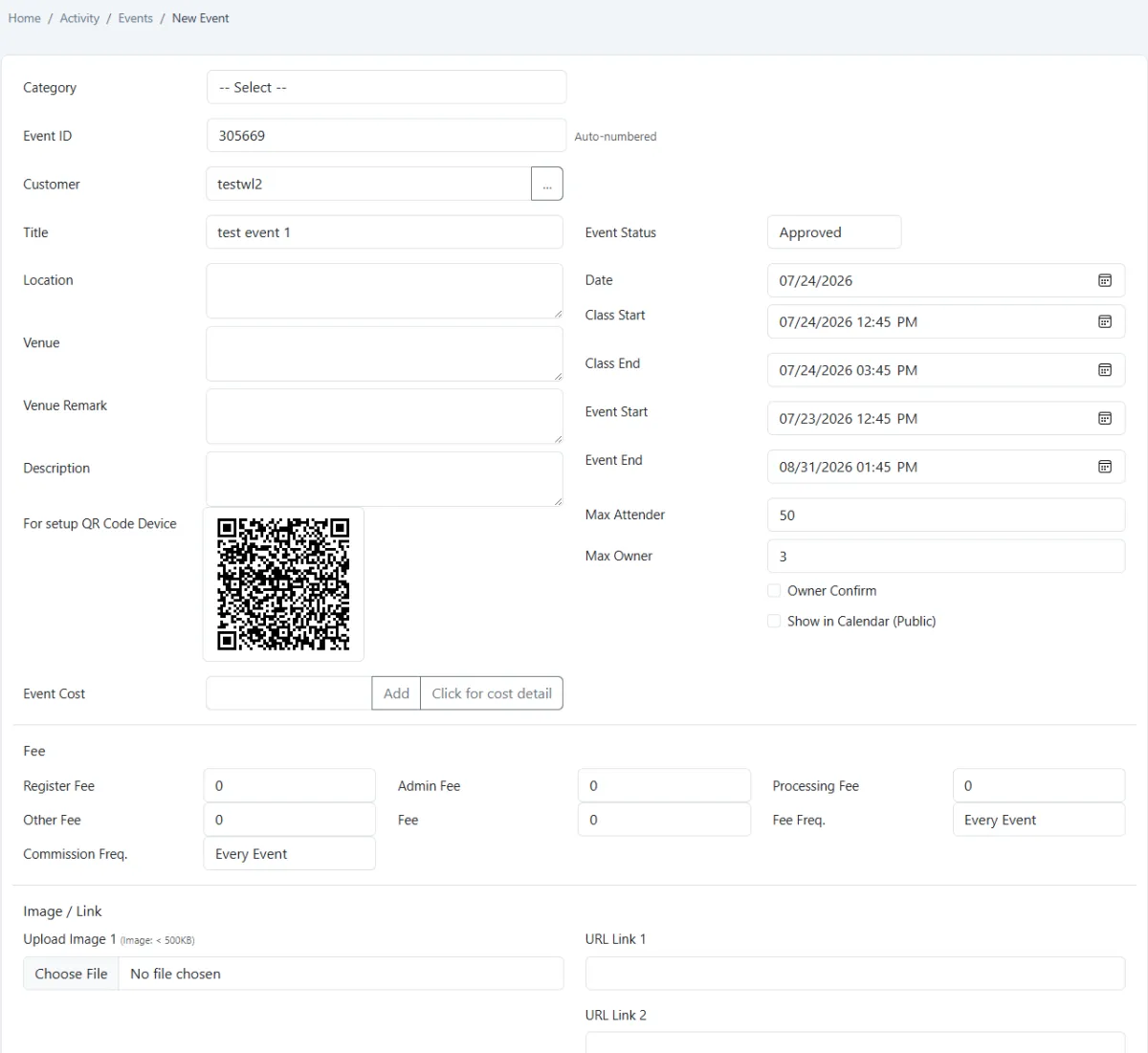
Use one long-running parent event as the master definition for the class.
Choose the class start date as the first scheduled session.
Set the event date-from and date-to as the full class period, including programmes that run for years.
Generate sessions every day, week, month or year as required.
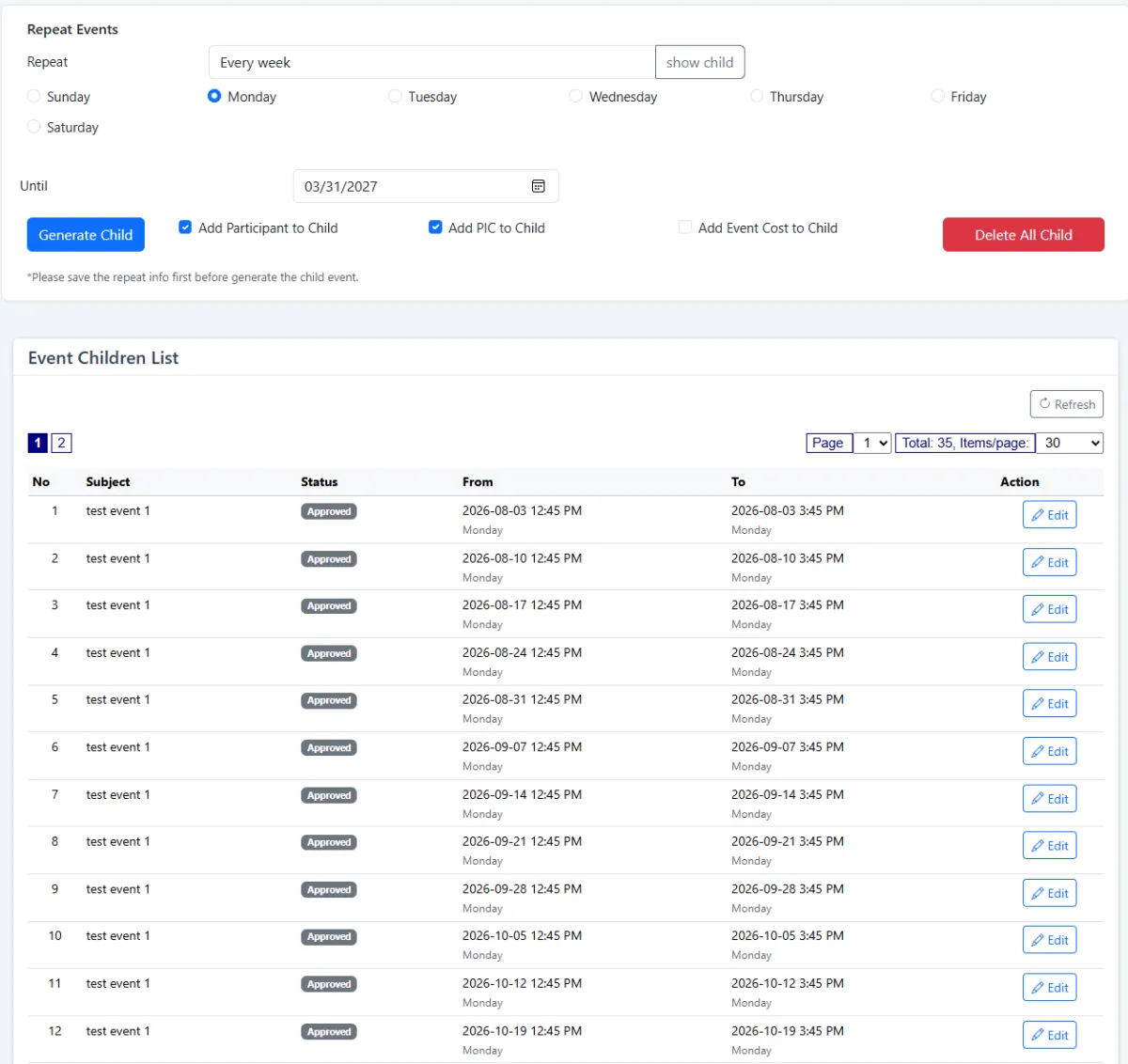
Create each repeated class date as a child of the parent class.
Carry the registered participant list into generated child sessions.
Keep the main list clear by showing top-level classes while retaining every child session.
Edit one child session to add a student for that date without changing the whole class.
Add existing iCRM contacts to the class roster.
Import a prepared participant list when enrolment must be handled in bulk.
Register students or participants even when they are not existing contacts.
Scan the class setup QR to register an attendance terminal to the correct programme.
Use the QR delivered to a registered participant for attendance scanning.
Tick participants from the session attendance-marking view.
Load the class roster on an Android attendance device and mark participants one by one.
Review registration and attendance across the parent class and its repeated dates.
Link participant portal access to the class recurrence period.
Select participants and extend login access when the class or entitlement continues.
Give students a class portal such as chess.itpa.my or another configured companion site.
Let logged-in participants pay through the Tutor Companion web app.
Mark the participant as paid when payment arrives through the Adaptis-enabled companion flow.
Associate the participant with the relevant receipt or invoice information.
Let logged-in participants view or download their receipt from the companion app.
Use active companion logins as an automatic attendance signal where appropriate.
Prepare questions for a live class interaction.
Let students answer the active question from their own device.
Display response outcomes while the interactive session is running.
Let students answer Training & KPI assessment sets from the same companion experience.
Keep class recurrence, roster, attendance, payment, access and learning activity together.
iCRM models the programme as a long-running parent class with generated child sessions, then connects the students on each date to attendance, payment, portal validity and the Tutor Companion learning experience.
Long-running class schedules, child sessions, student rosters, attendance, portal access, payments and interactive learning.
Public-event registration, QR participant journeys, vendor PIC commission, statements and wider event accounting.
Explore Events & Attendance →Create a new event specifically for the class—not a corporate holiday event. The selected start date becomes the first session, while the date-from and date-to define the full programme period, even when the class continues for years.
Generate child sessions daily, weekly, monthly or yearly. A Monday class, for example, creates a child event for every Monday and copies the registered students into each generated date. The main class list remains clear by showing parent classes only.
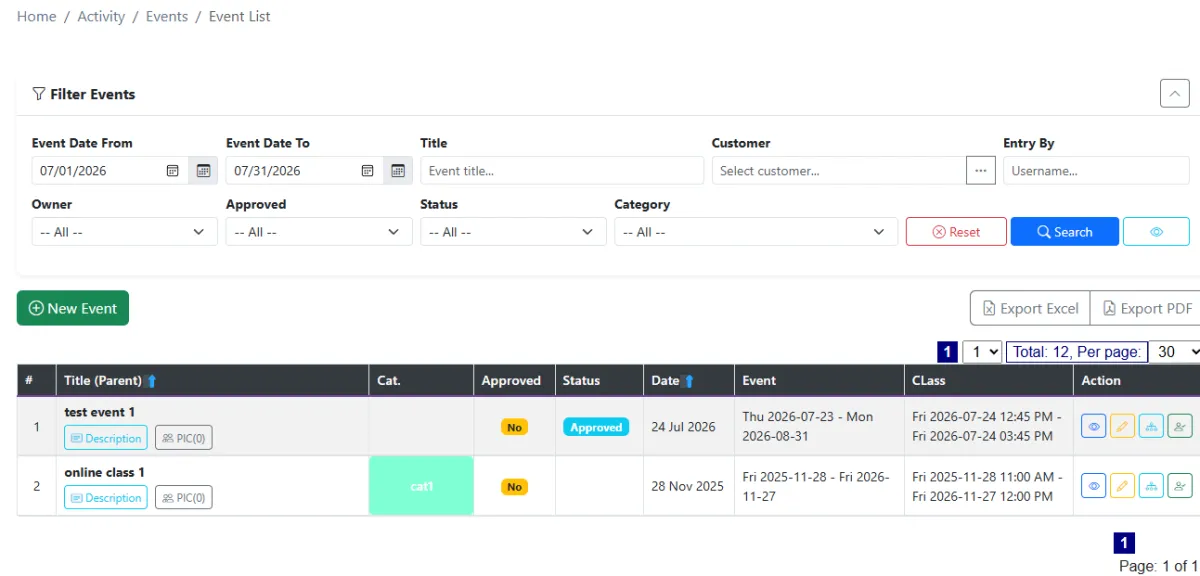
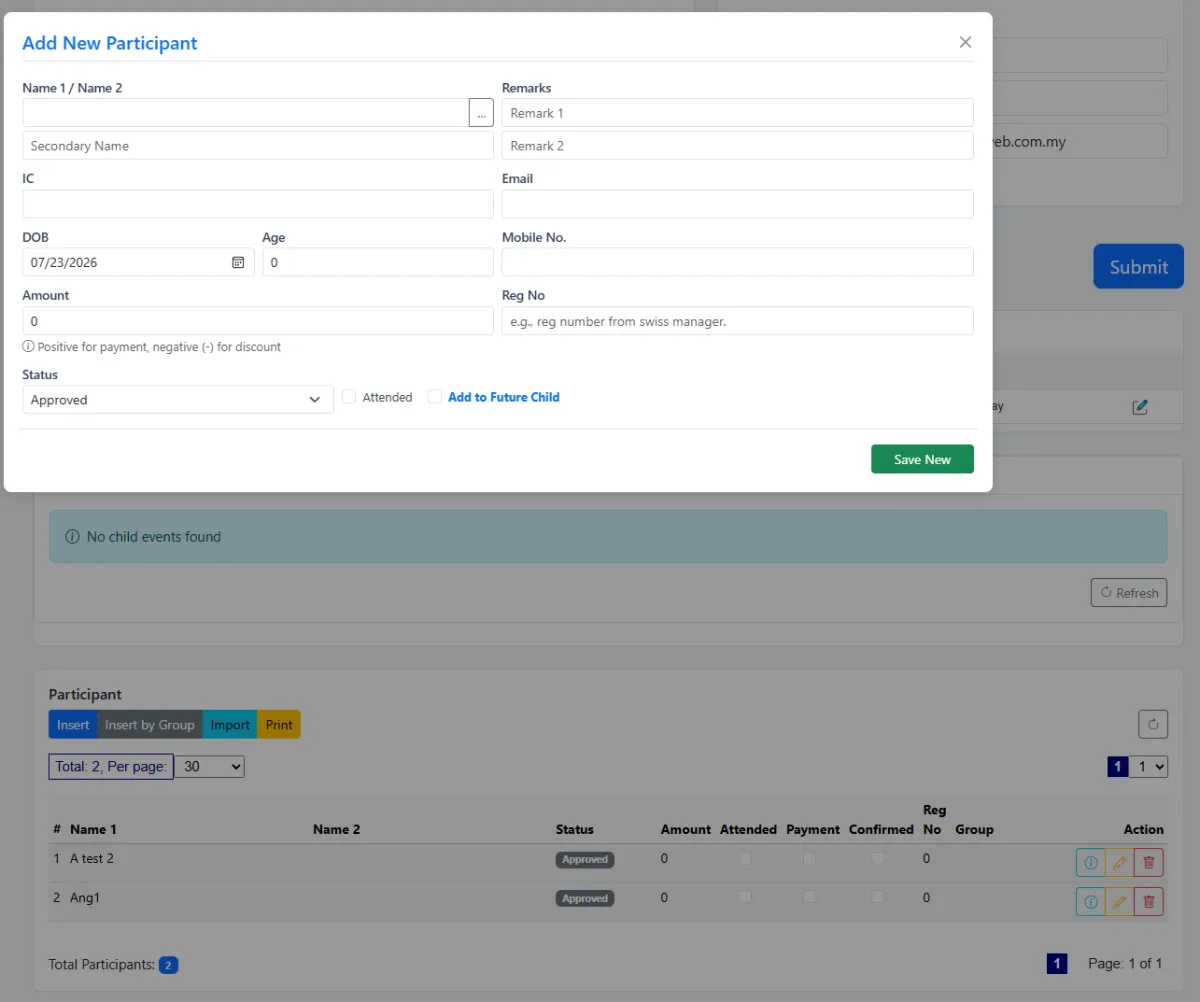
Select existing contacts, import a participant list or register people who are not yet contacts. For attendance, register a QR terminal to the class, scan participant QR codes, load the roster on Android or mark the session manually.
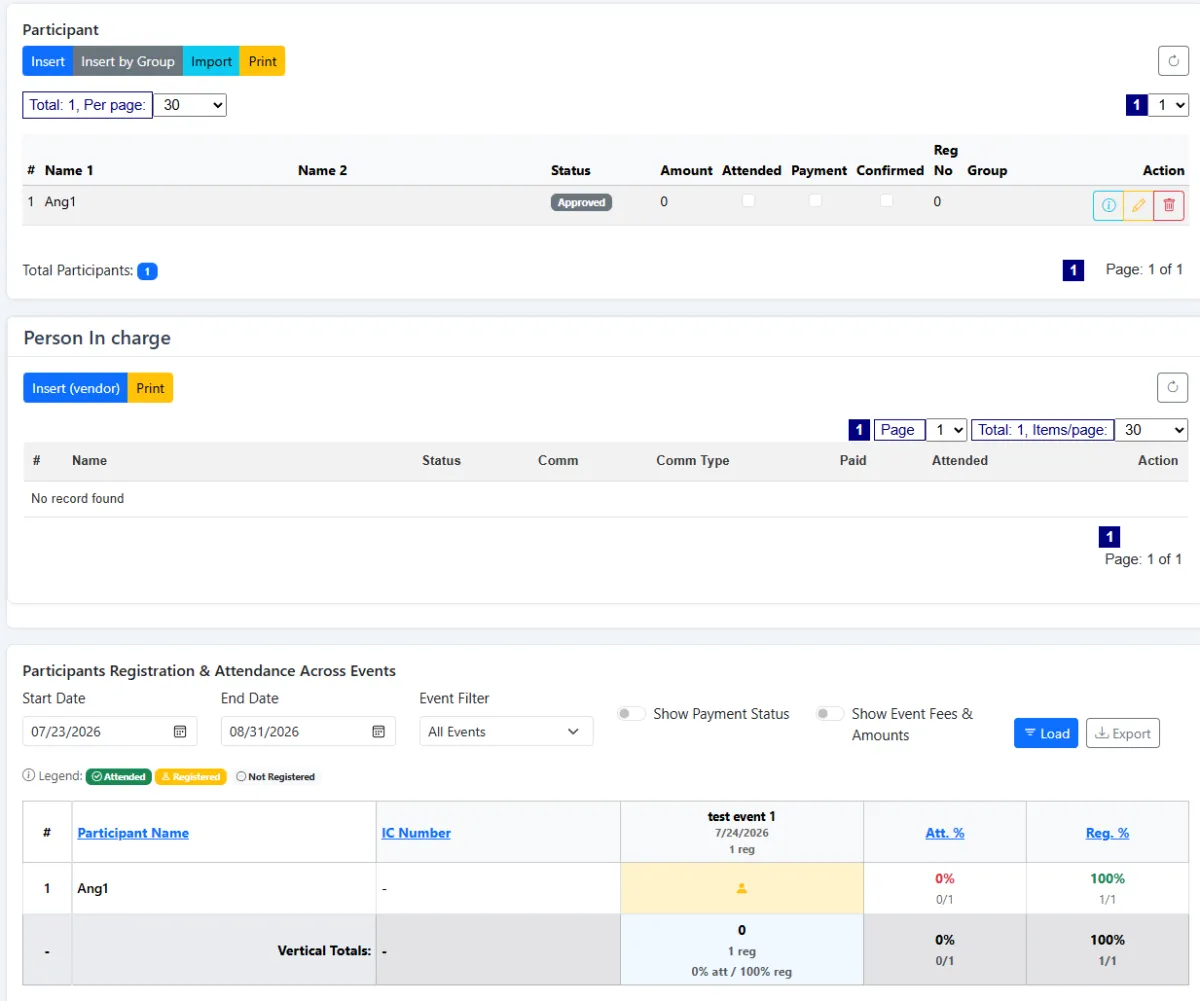
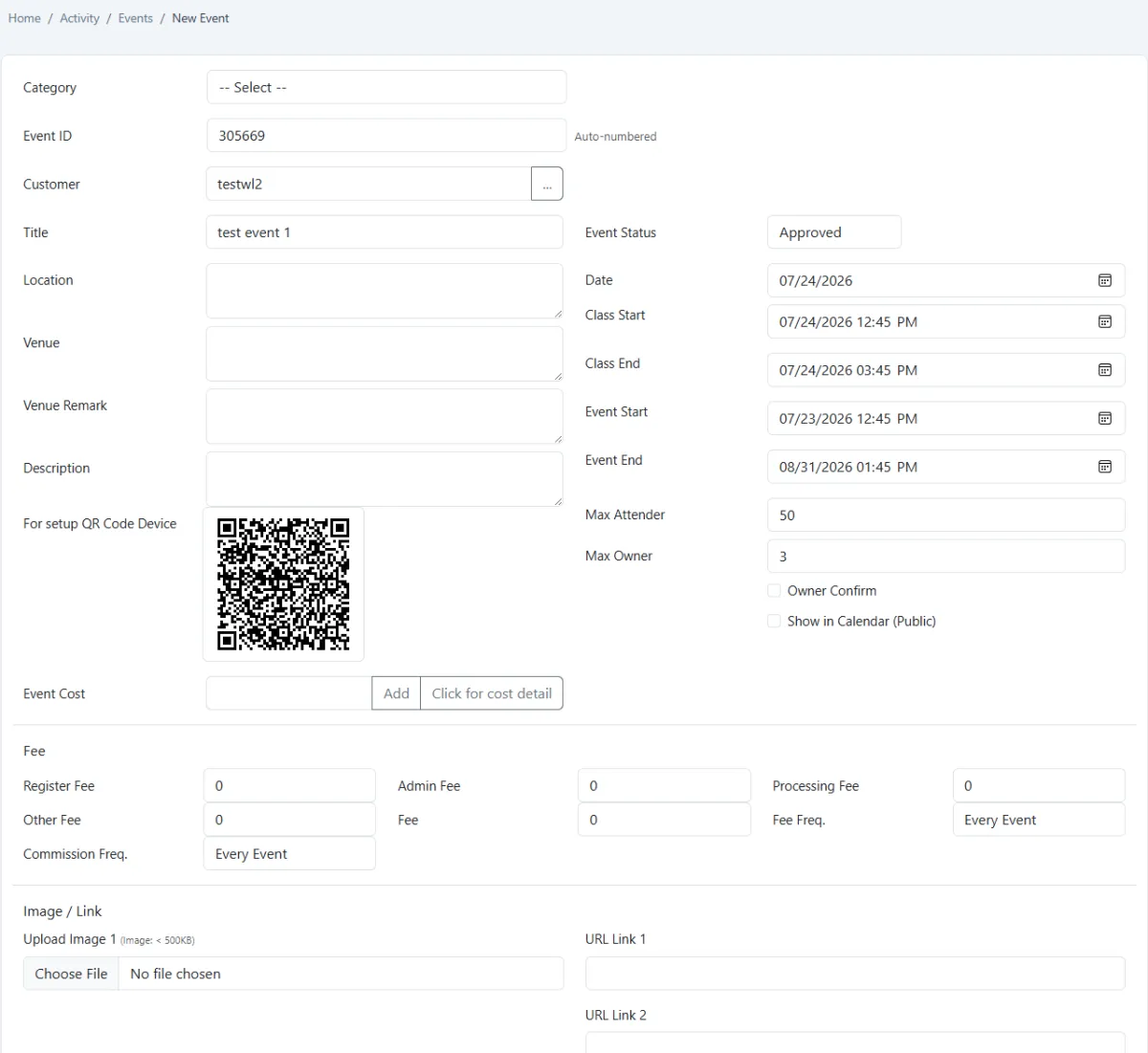
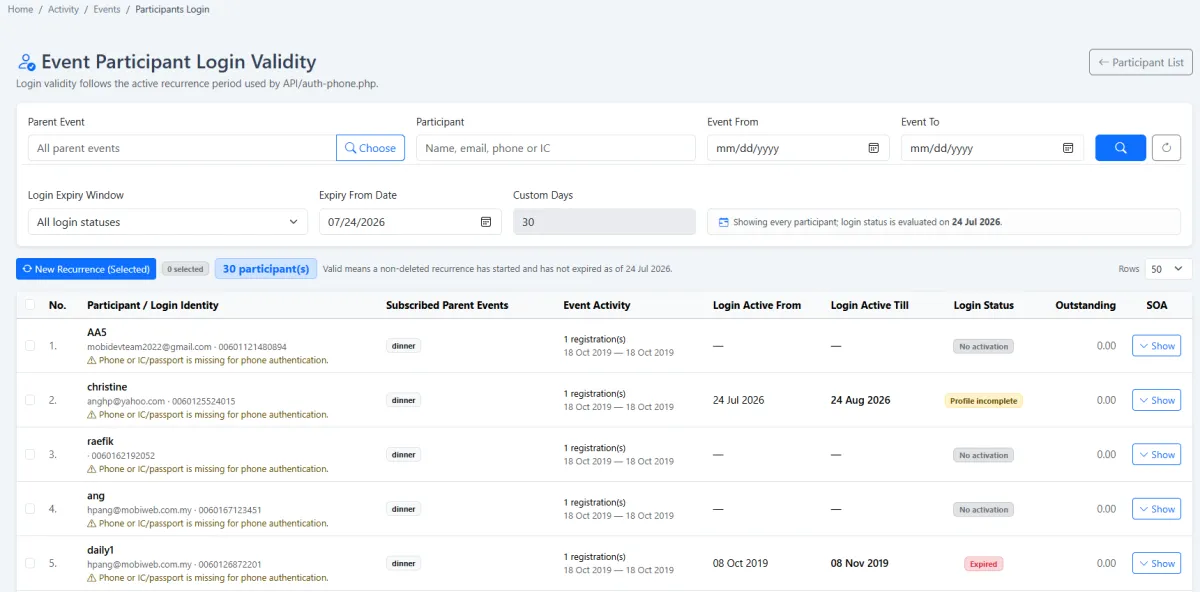
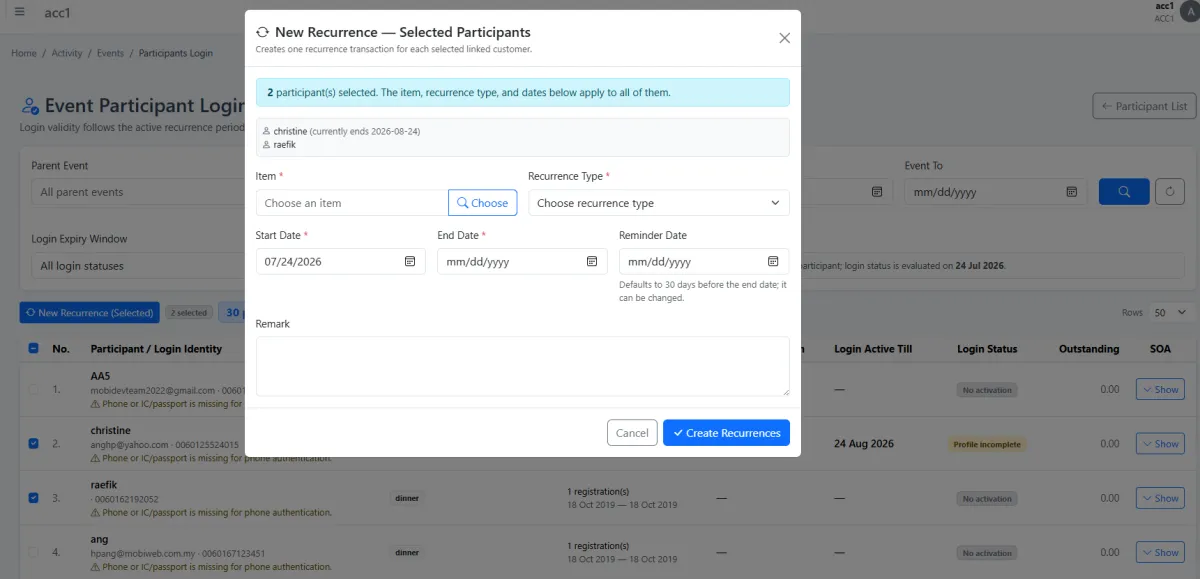
Participant portal access follows the recurrence period, so the right learning window is connected to the class. When the programme continues or access needs adjustment, select the relevant students and extend their validity together.
Students log in through a configured companion site such as chess.itpa.my. From there they can make payment, and Adaptis-enabled payments automatically update paid status. Active logins may also provide an automatic attendance signal where that model fits the class.
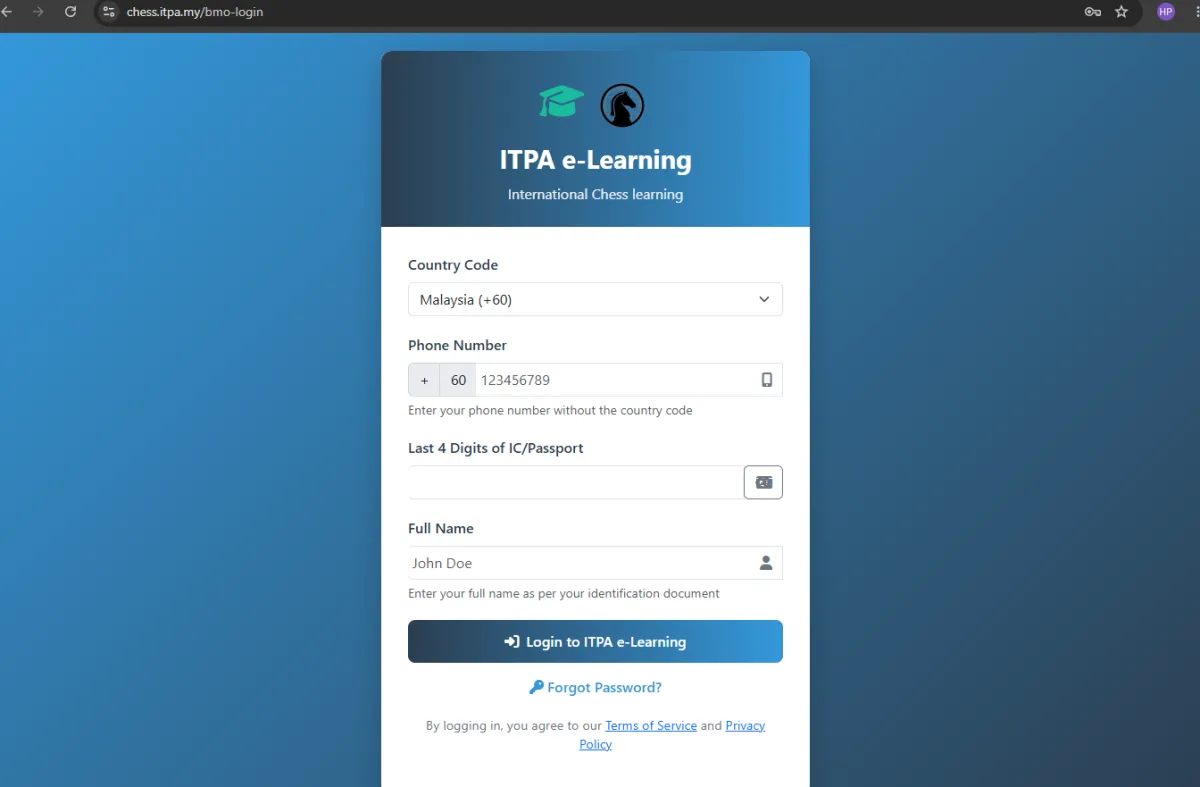
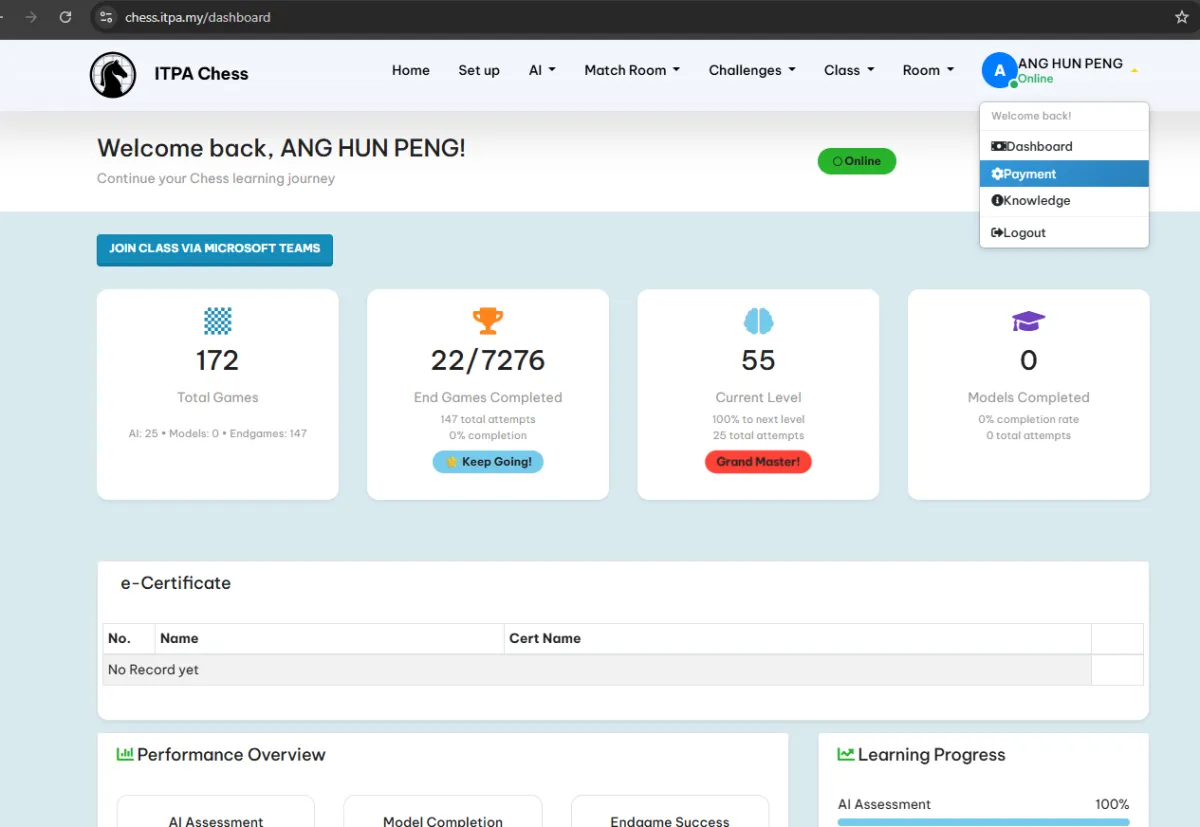
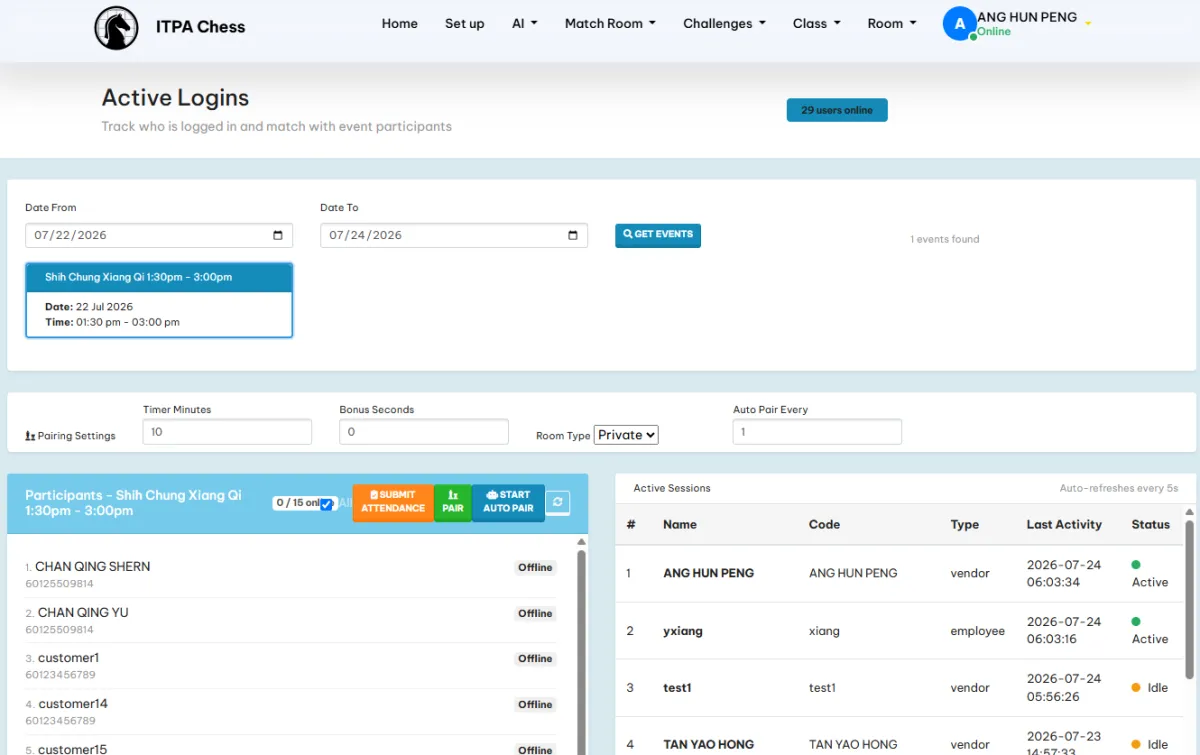
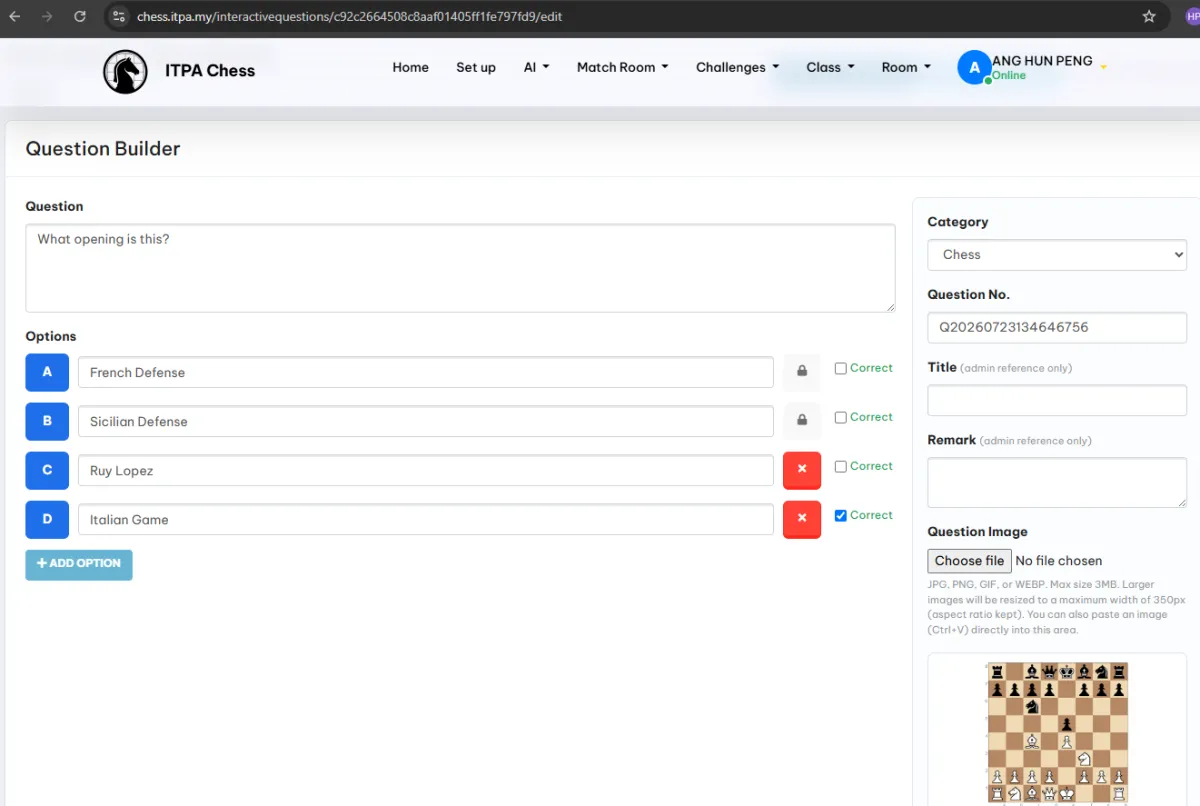
Build interactive questions for the class, open the active session and let students answer immediately from their own devices. The live-result view gives the class an instant response picture that can support explanation and discussion.
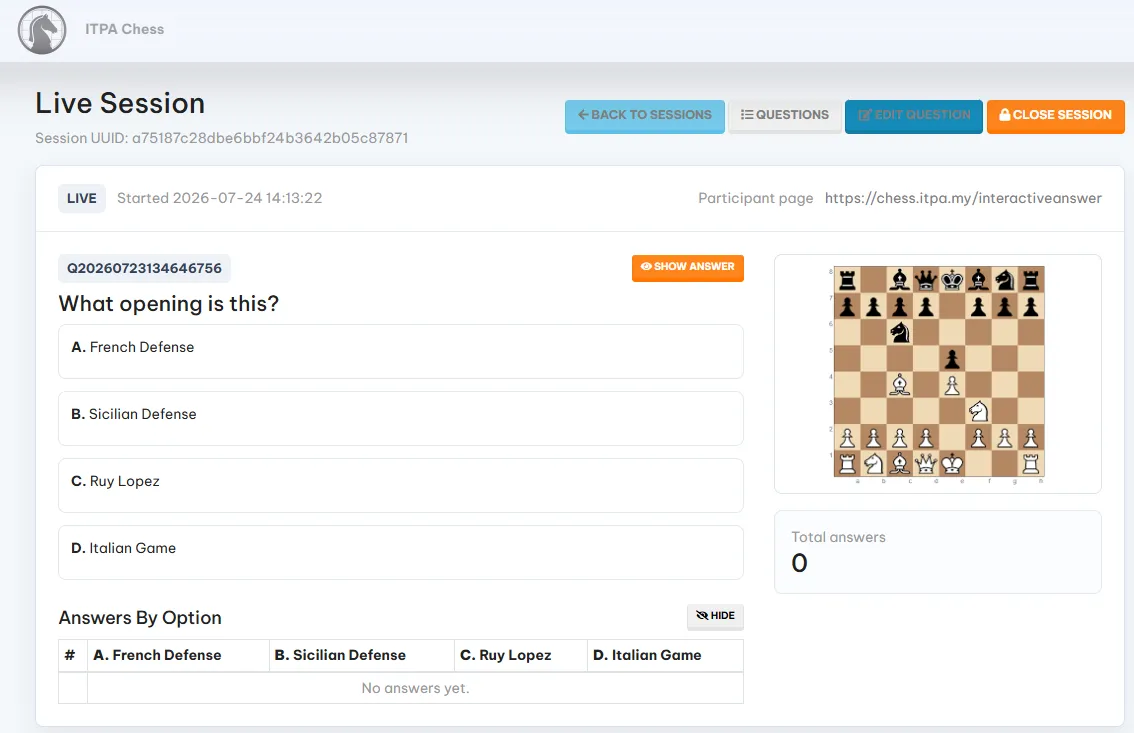
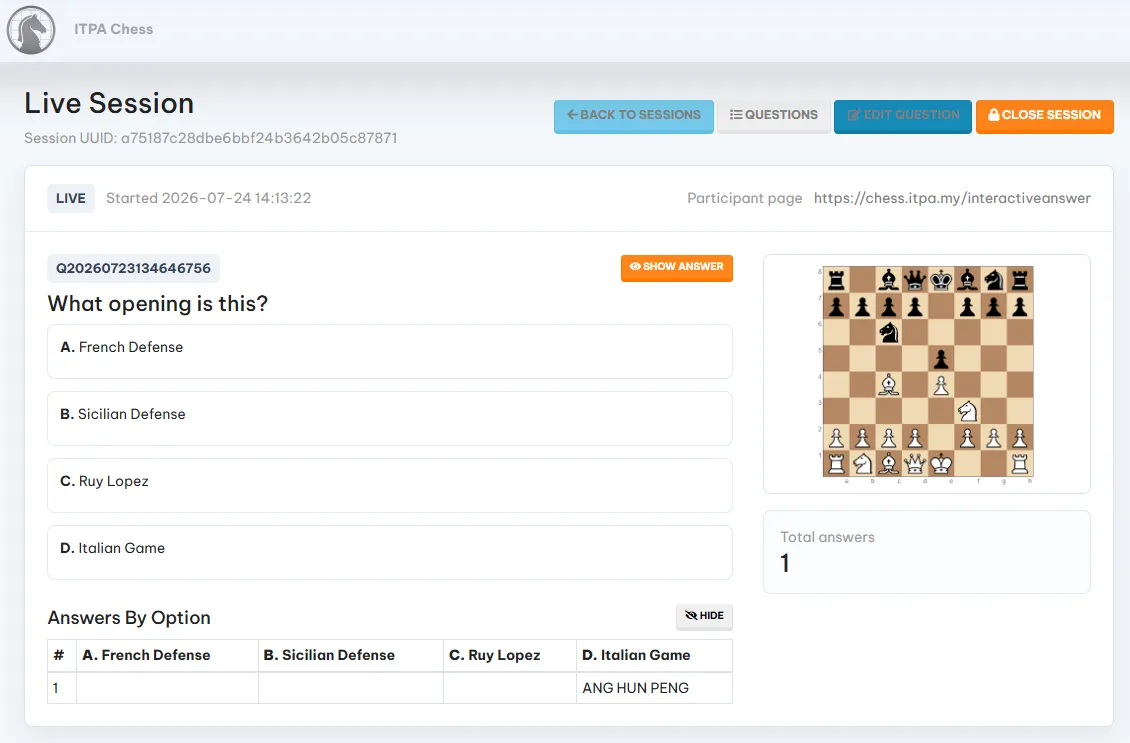
Students can answer assigned Training & KPI assessment sets from the companion experience. Administrators connect the correct receipt or invoice information to the participant, and logged-in users can view or download the resulting receipt.
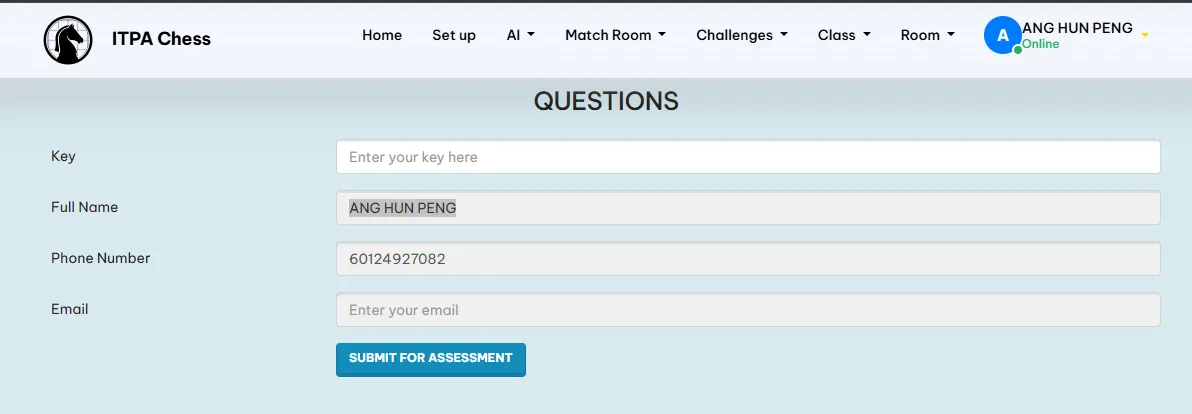
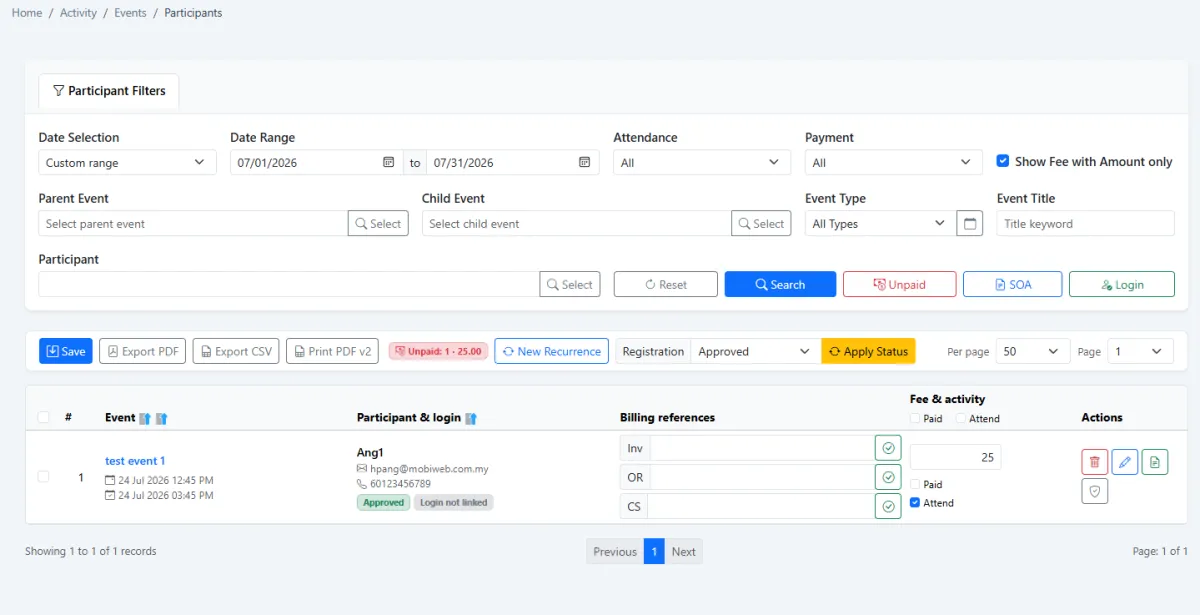
Use the parent class for the long programme, child sessions for each date and Tutor Companion for student access and engagement.
Choose the first class date and set the complete programme date range.
Select daily, weekly, monthly or yearly repetition and generate the child sessions.
Add contacts, import a list or register students who are not existing contacts.
Edit a child session when one student attends only a particular class date.
Register the terminal and choose QR, Android, manual or login-based attendance.
Link access to recurrence and extend selected students when the class continues.
Use Tutor Companion and connect paid status, receipt and invoice information.
Build live questions, collect student answers and display immediate results.
Issue Training & KPI sets and retain the learning evidence beyond the live class.
Explore how the screens and functions in Tuition & Classes support setup, daily operations and continuous improvement.
Create classes and recurring programmes separately from corporate holiday and company-event calendars.
Use one long-running parent event as the master definition for the class.
Choose the class start date as the first scheduled session.
Set the event date-from and date-to as the full class period, including programmes that run for years.
Generate sessions every day, week, month or year as required.
Create each repeated class date as a child of the parent class.
Carry the registered participant list into generated child sessions.
Keep the main list clear by showing top-level classes while retaining every child session.
Edit one child session to add a student for that date without changing the whole class.
Add existing iCRM contacts to the class roster.
Import a prepared participant list when enrolment must be handled in bulk.
Register students or participants even when they are not existing contacts.
Scan the class setup QR to register an attendance terminal to the correct programme.
Use the QR delivered to a registered participant for attendance scanning.
Tick participants from the session attendance-marking view.
Load the class roster on an Android attendance device and mark participants one by one.
Review registration and attendance across the parent class and its repeated dates.
Link participant portal access to the class recurrence period.
Select participants and extend login access when the class or entitlement continues.
Give students a class portal such as chess.itpa.my or another configured companion site.
Let logged-in participants pay through the Tutor Companion web app.
Mark the participant as paid when payment arrives through the Adaptis-enabled companion flow.
Associate the participant with the relevant receipt or invoice information.
Let logged-in participants view or download their receipt from the companion app.
Use active companion logins as an automatic attendance signal where appropriate.
Prepare questions for a live class interaction.
Let students answer the active question from their own device.
Display response outcomes while the interactive session is running.
Let students answer Training & KPI assessment sets from the same companion experience.
Keep class recurrence, roster, attendance, payment, access and learning activity together.
Create the parent class, first session and long recurrence period.
Create child dates and add students from contacts, import or direct registration.
Track date-specific attendance, payment, receipt and portal validity.
Use Tutor Companion for login, interactive learning, live results and assessments.
Tell us how your team works today. We’ll demonstrate the modules that matter most.
Book your personalised demo →