New appointment
Create a structured appointment record with the information needed for the scheduled activity.
Create and manage appointments from one working list, place them in the shared activity calendar, schedule appointment reminders and automatically send calendar information to the people who need it.
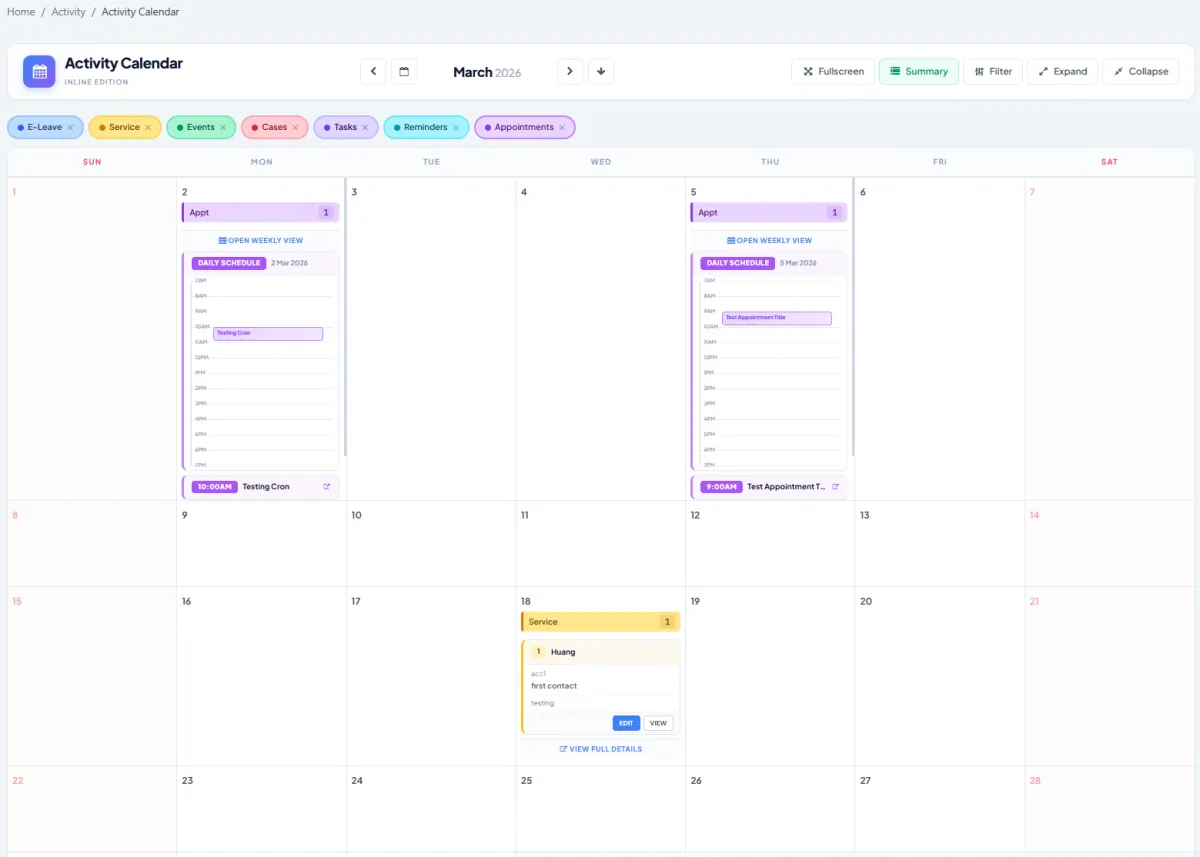
Create and manage appointments from one working list, place them in the shared activity calendar, schedule appointment reminders and automatically send calendar information to the people who need it.
Create a structured appointment record with the information needed for the scheduled activity.
Give staff one repeatable route for registering new appointments.
Review all appointment records from a central working list.
Use the list to check work that is scheduled and still needs attention.
Keep earlier appointment records available for operational context.
Open a record from the list when its information needs review or updating.
Show appointments in the shared calendar of business activities.
Review scheduled appointment activity for the selected date.
See appointments alongside other relevant activities instead of maintaining an isolated diary.
Configure appointment reminders through the central reminder-channel page.
Set communication to go out at the appropriate time before or around an appointment.
Schedule delivery of calendar information from the reminder-channel workflow.
Direct appointment or calendar communication to the intended people.
Use the calendar, list and scheduled communication together as a dependable operating routine.
Make upcoming appointments visible and support timely action without relying only on memory.
iCRM connects the appointment record, working list, daily activity calendar and scheduled communication so teams can coordinate the event before, during and after its scheduled time.
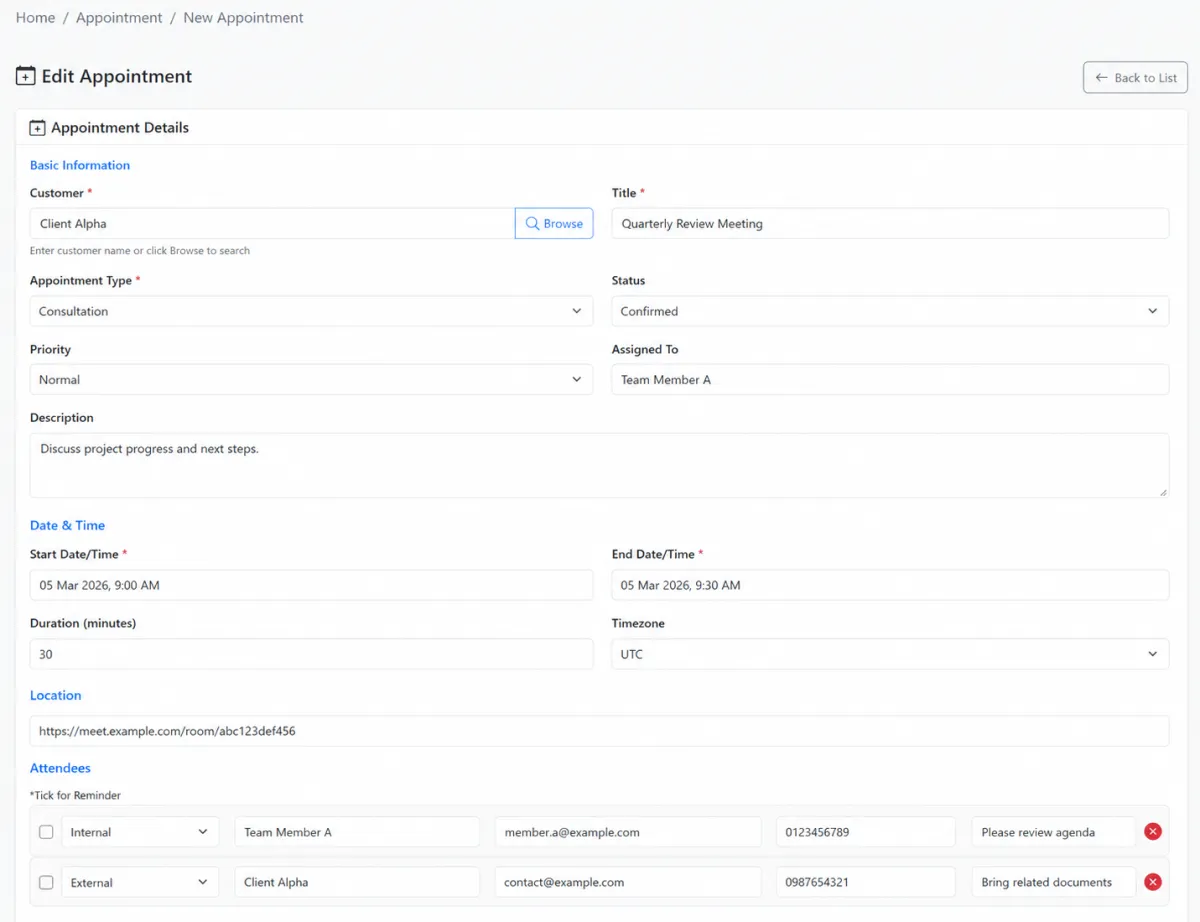
Register a new appointment through the dedicated entry screen. A consistent creation path gives everyone the information they need and supplies the appointment data used by the list, calendar and reminder workflow.
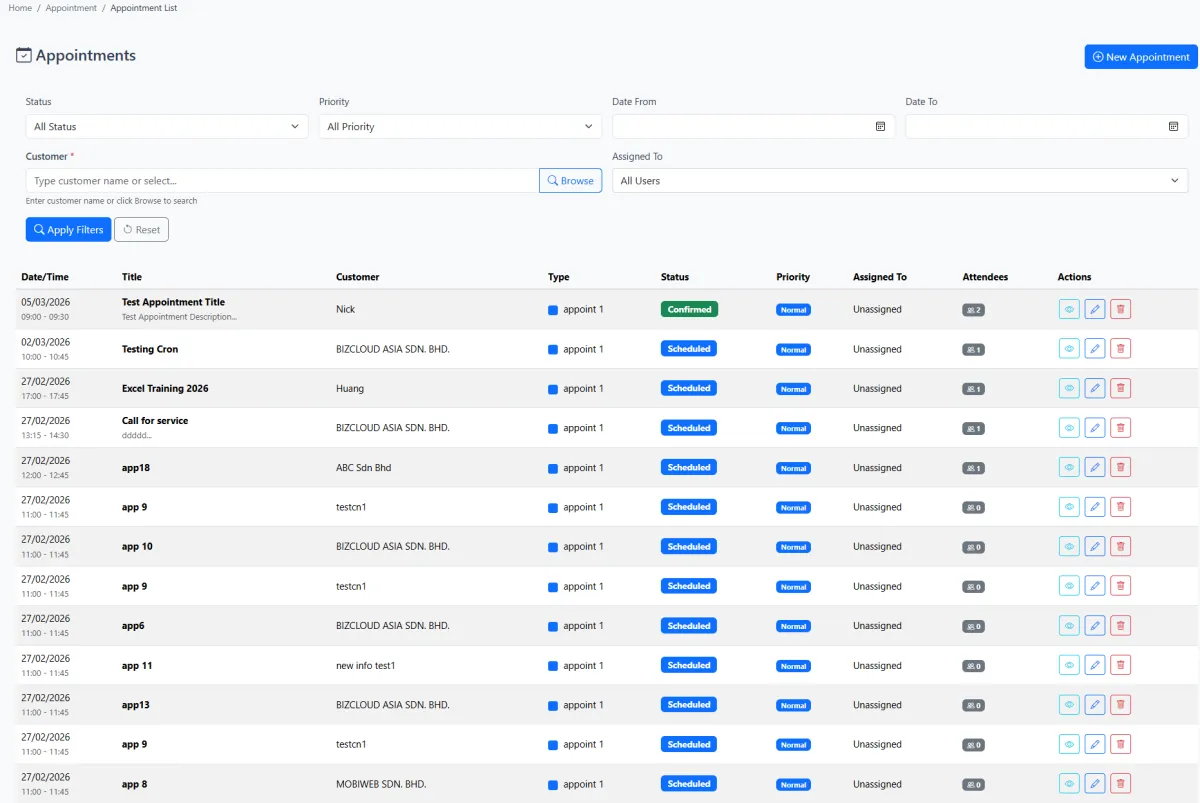
The appointment list becomes the team’s operational index. Review scheduled work, locate an earlier appointment for context and open a record whenever its information needs attention.
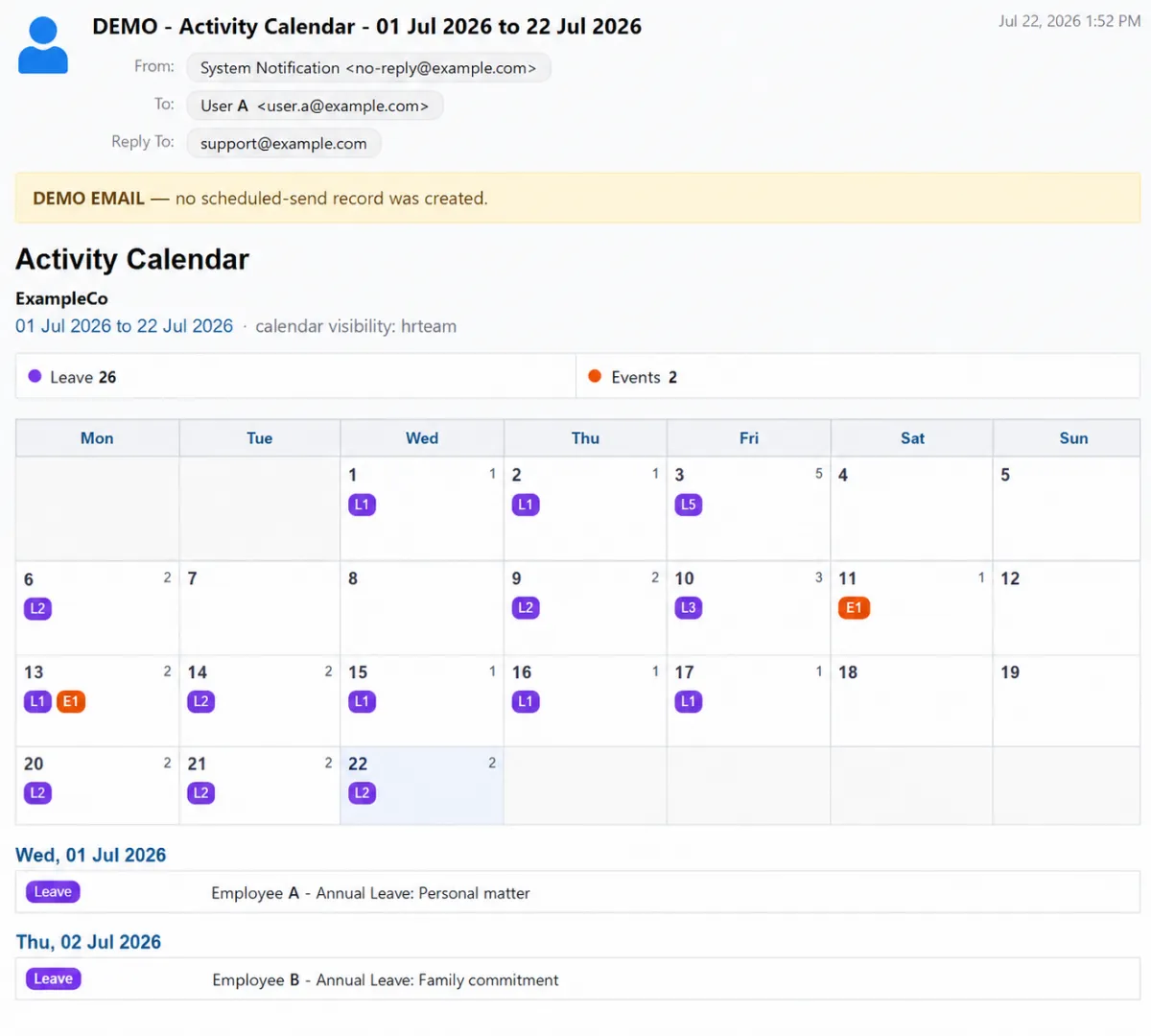
Appointments appear in the activity calendar rather than remaining in an isolated list. Teams can review the selected day and understand scheduled appointments alongside other relevant business activities.
Use the activity calendar to prepare the day, then use the appointment list when a team member needs the full working record.
Configure appointment reminders through the central reminder-channel page. The schedule determines when communication should be triggered so the intended people receive a useful prompt around the appointment.
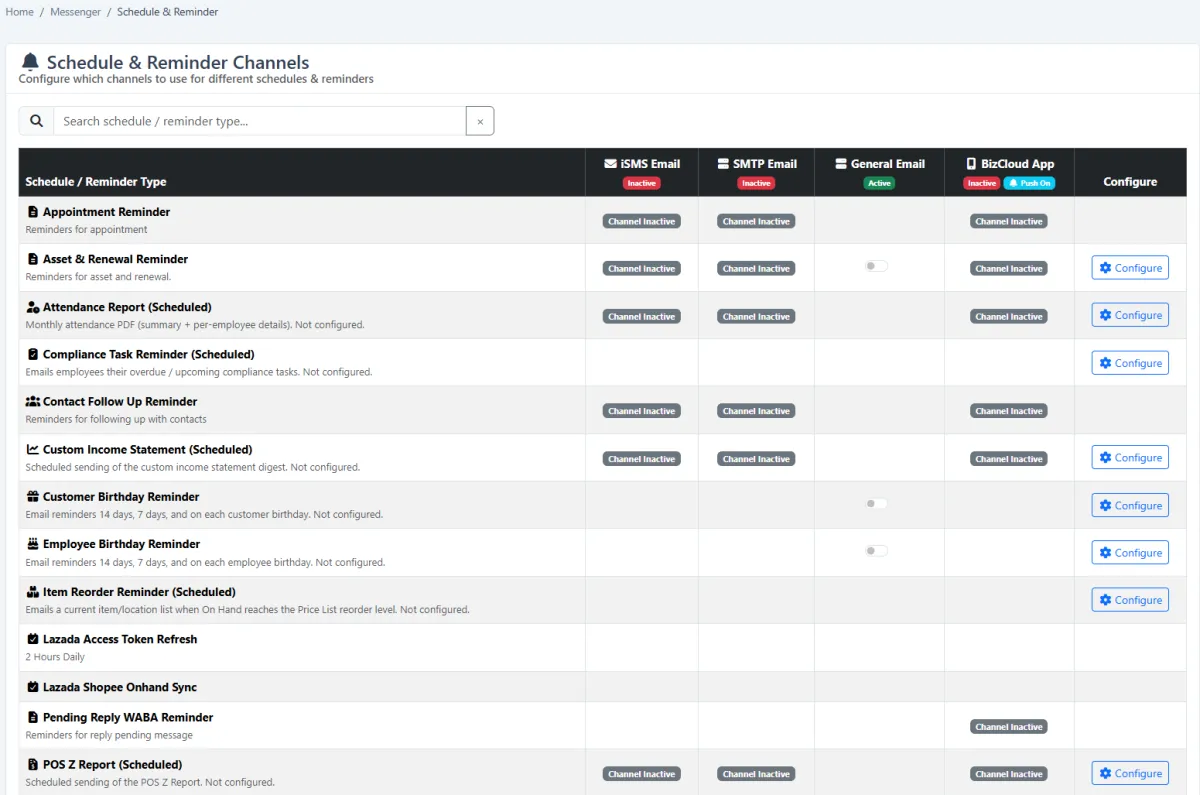
Use the reminder-channel configuration to schedule calendar send-outs. This turns the calendar from a screen that must be checked manually into information that can be delivered to selected recipients at the configured time.
Use the same connected sequence for each appointment so the record, calendar and communication stay aligned.
Register the scheduled activity and complete the information required by the team.
Confirm that the record appears in the central working view and review its details.
Use the activity calendar to understand the appointment within the selected day.
Choose the appropriate timing and recipients through the reminder-channel workflow.
Deliver calendar information automatically when broader coordination is required.
Use the calendar and appointment list together to complete the next operational action.
Explore how the screens and functions in Appointments support setup, daily operations and continuous improvement.
Create a structured appointment record with the information needed for the scheduled activity.
Give staff one repeatable route for registering new appointments.
Review all appointment records from a central working list.
Use the list to check work that is scheduled and still needs attention.
Keep earlier appointment records available for operational context.
Open a record from the list when its information needs review or updating.
Show appointments in the shared calendar of business activities.
Review scheduled appointment activity for the selected date.
See appointments alongside other relevant activities instead of maintaining an isolated diary.
Configure appointment reminders through the central reminder-channel page.
Set communication to go out at the appropriate time before or around an appointment.
Schedule delivery of calendar information from the reminder-channel workflow.
Direct appointment or calendar communication to the intended people.
Use the calendar, list and scheduled communication together as a dependable operating routine.
Make upcoming appointments visible and support timely action without relying only on memory.
Register the appointment with the required scheduling information.
Review it from the appointment list and shared activity calendar.
Configure reminders and scheduled calendar send-outs.
Use the daily view and working list to complete the next action.
Tell us how your team works today. We’ll demonstrate the modules that matter most.
Book your personalised demo →