Company Google Drive
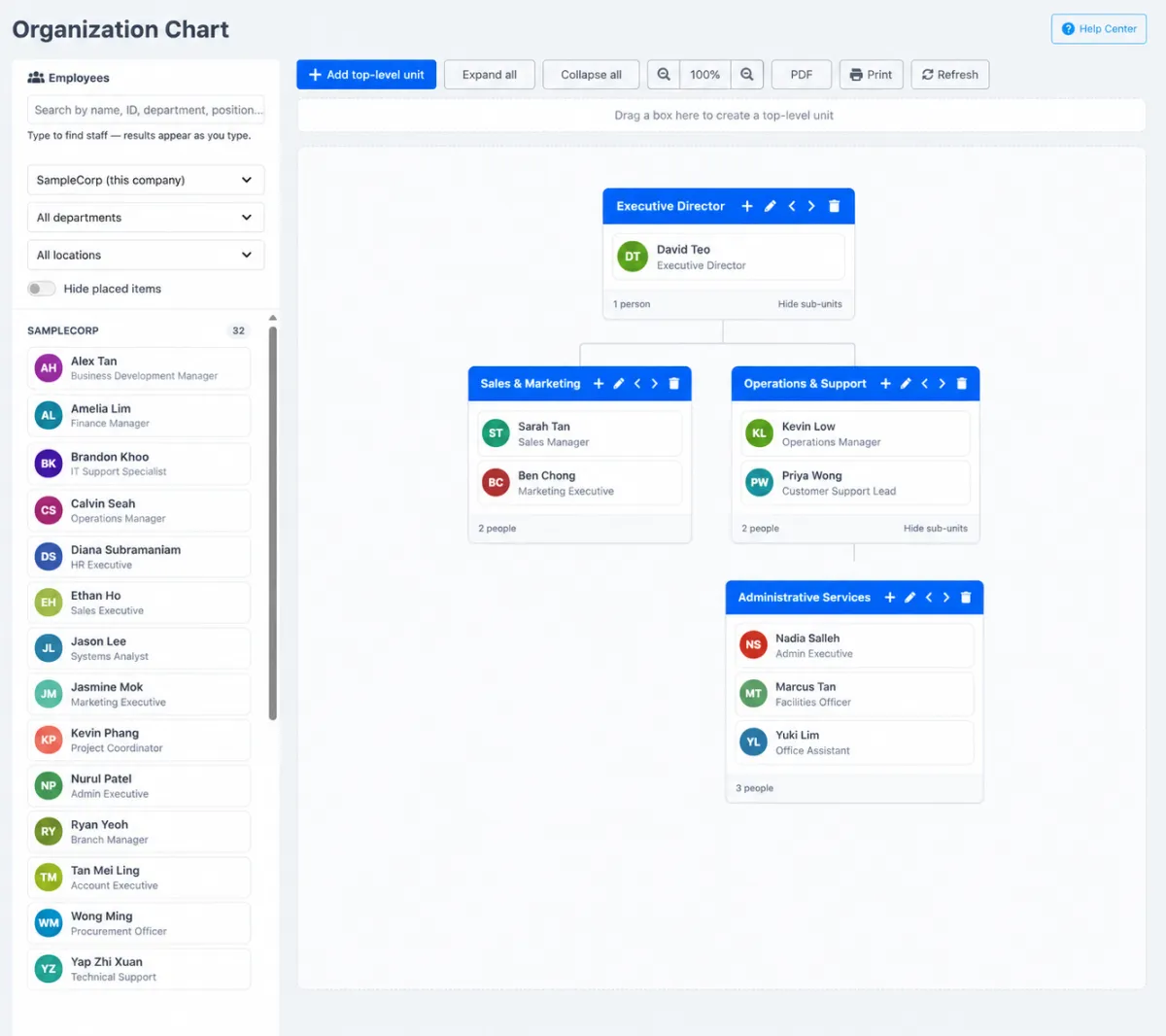
Connect the organisation’s Google Drive from the main company profile.
Connect company Google Drive, reporting lines, departments, renewable assets, legislation, commercial digital services, secured portal credentials and a shared corporate calendar in one governed workspace.
Connect company Google Drive, reporting lines, departments, renewable assets, legislation, commercial digital services, secured portal credentials and a shared corporate calendar in one governed workspace.
Connect the organisation’s Google Drive from the main company profile.
Give authorised teams a consistent route to company files and collaborative resources.
Visualise reporting lines and how employees fit across the business.
Create the formal departments used by employee and corporate records.
Define more detailed sections beneath departments for clearer organisation.
Use department and section assignments to keep workforce structure current.
Maintain domains, licences and other renewable corporate assets.
See active, expiring, soon and expired renewal records.
Schedule asset-renewal communication through the central reminder-channel setup.
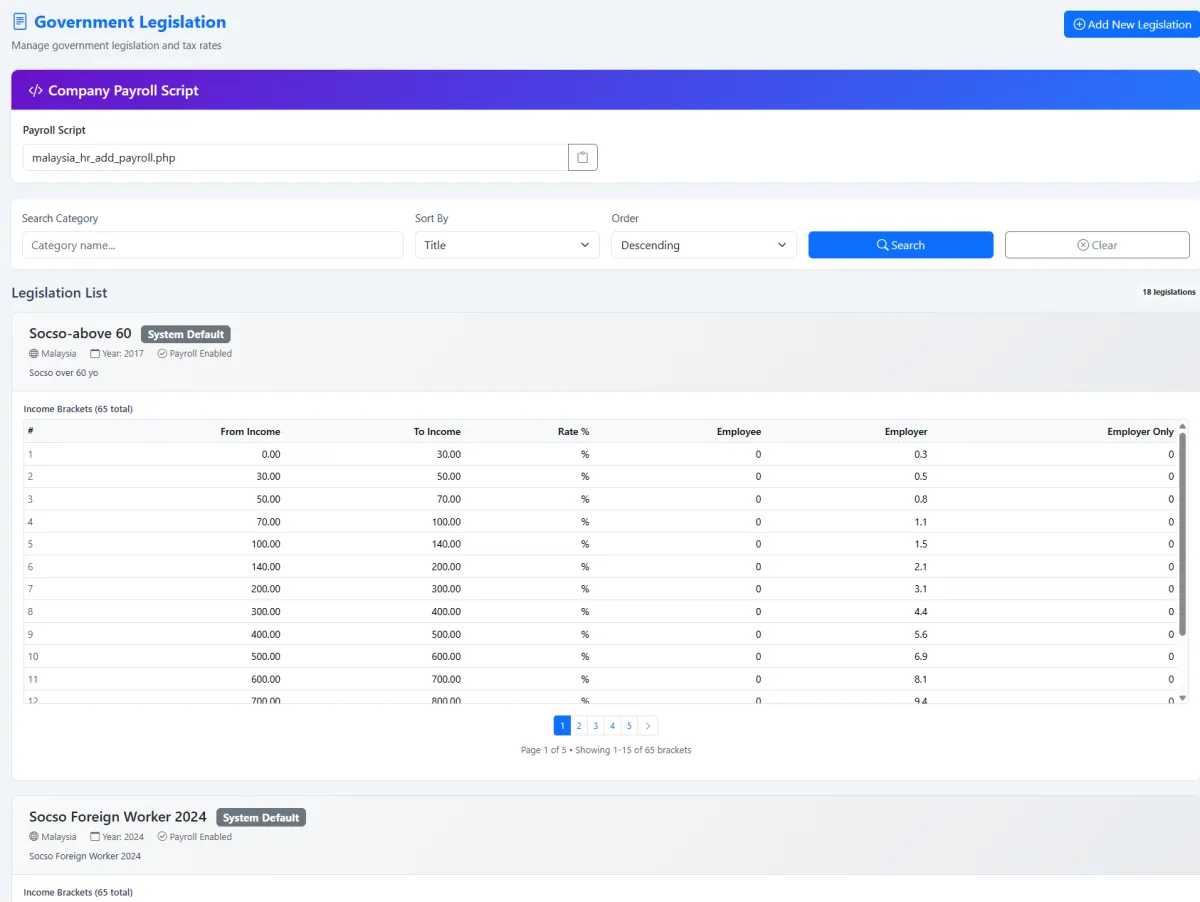
Maintain relevant statutory or legislative references in a central company register.
Keep the organisation’s government-reference information available to the people who need it.
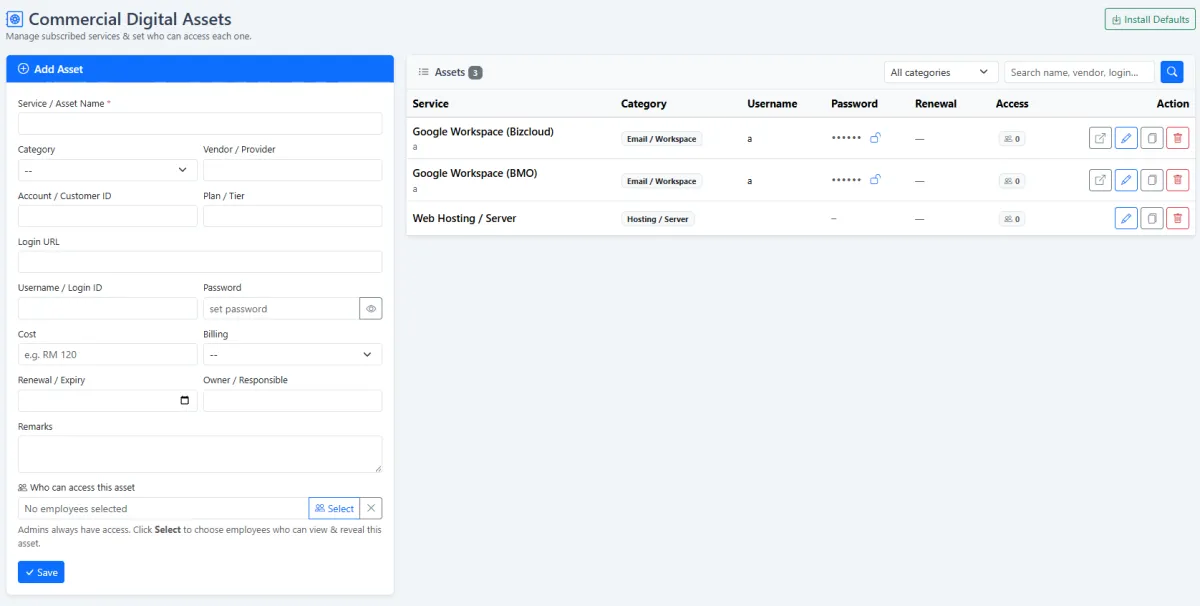
Record company Google accounts, hosting, subscribed services and other digital business assets.
Classify services such as email/workspace, hosting/server and other commercial platforms.
Keep vendor, account/customer ID, plan and login URL information with the asset.
Record cost, billing arrangement, renewal or expiry and the responsible owner.
Maintain username and password information where the commercial service requires it.
Choose which employees may view or reveal each digital asset.
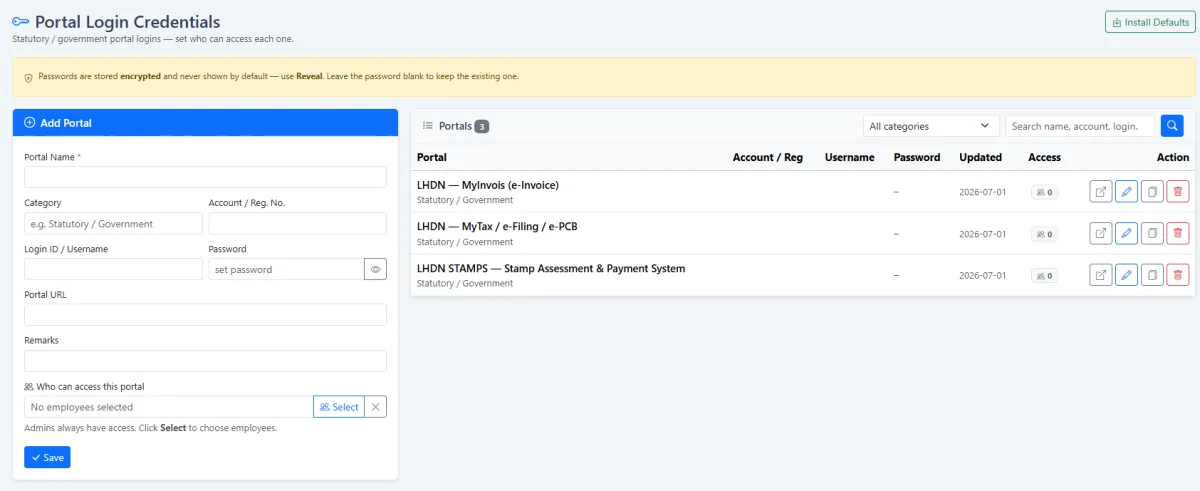
Store logins for government, statutory and other company portals.
Record portal name, category, registration number, username, URL and remarks.
Keep portal passwords encrypted and hidden by default.
Allow authorised users to reveal a credential only when necessary.
Select the employees permitted to access each corporate portal.
Preserve administrator access while limiting visibility for other employees.
Install standard digital-asset or government-portal records as a database starting point.
Find records by category, name, vendor, account or login context.
Work with portal and digital-asset records without rebuilding information.
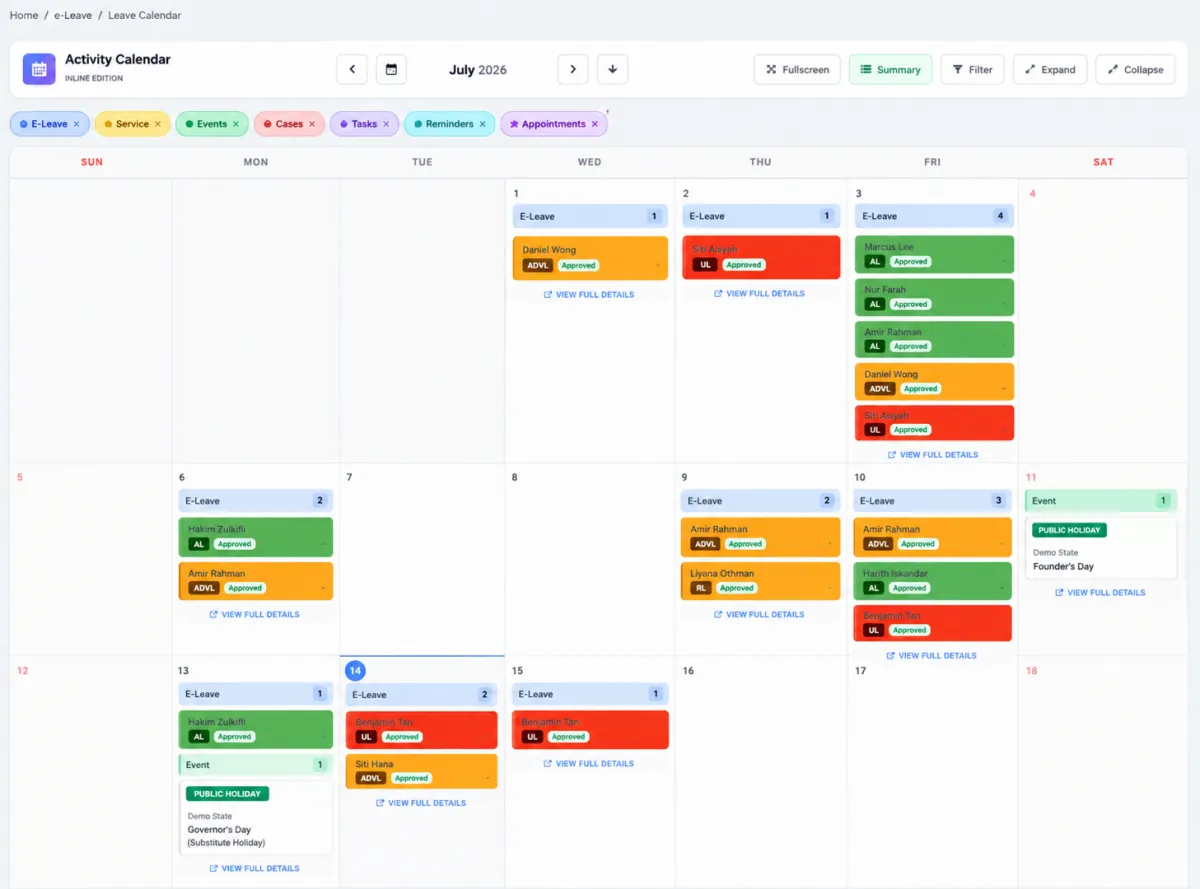
Show company events in the shared activity calendar.
Include corporate holidays in the same calendar view.
Display employee leave alongside corporate events and holidays.
Review the selected day to understand company and workforce availability together.
iCRM brings the organisation’s shared files, reporting lines, commercial services, statutory portals, renewable obligations and calendar into one operational model—without giving every employee access to every sensitive record.
Connect the organisation’s Google Drive from the main company profile. The corporate workspace then provides a clear foundation for the files and collaborative resources used across the business.
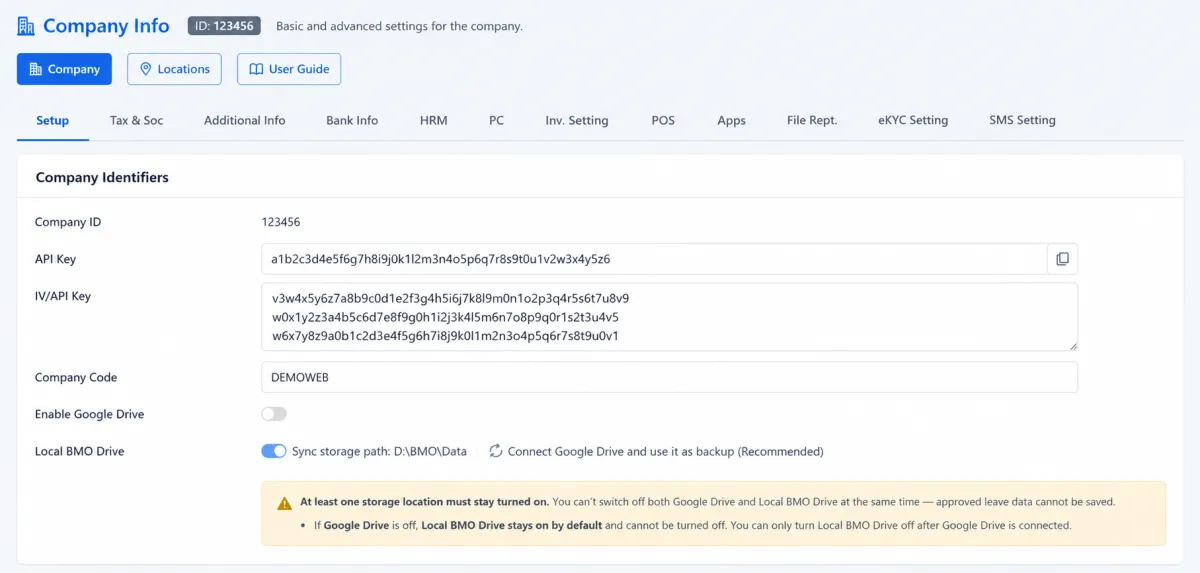
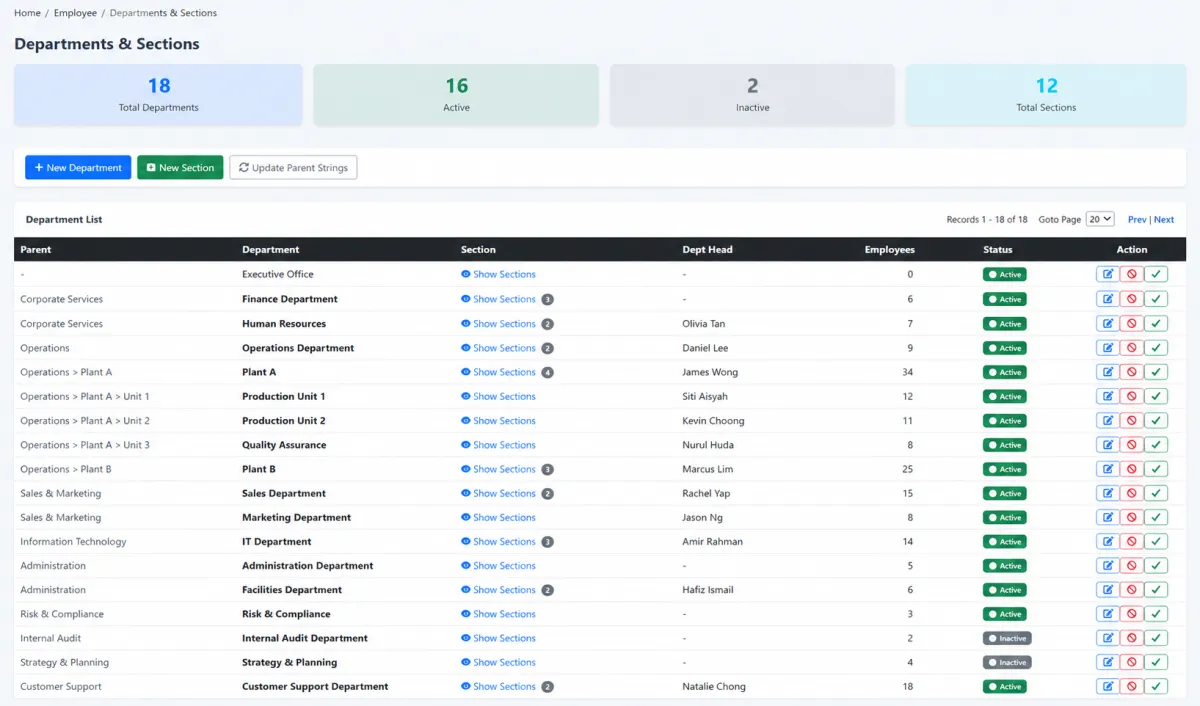
The organisation chart shows how employees report through the business. Department and section setup supplies the formal structure used by employee records, permissions, ownership and operational reporting.
Use the asset and renewal register for time-bound corporate records, then configure renewal reminders through the central reminder channel. Dashboard indicators distinguish active, 30-day, 7-day and expired items so the team can act before continuity is affected.
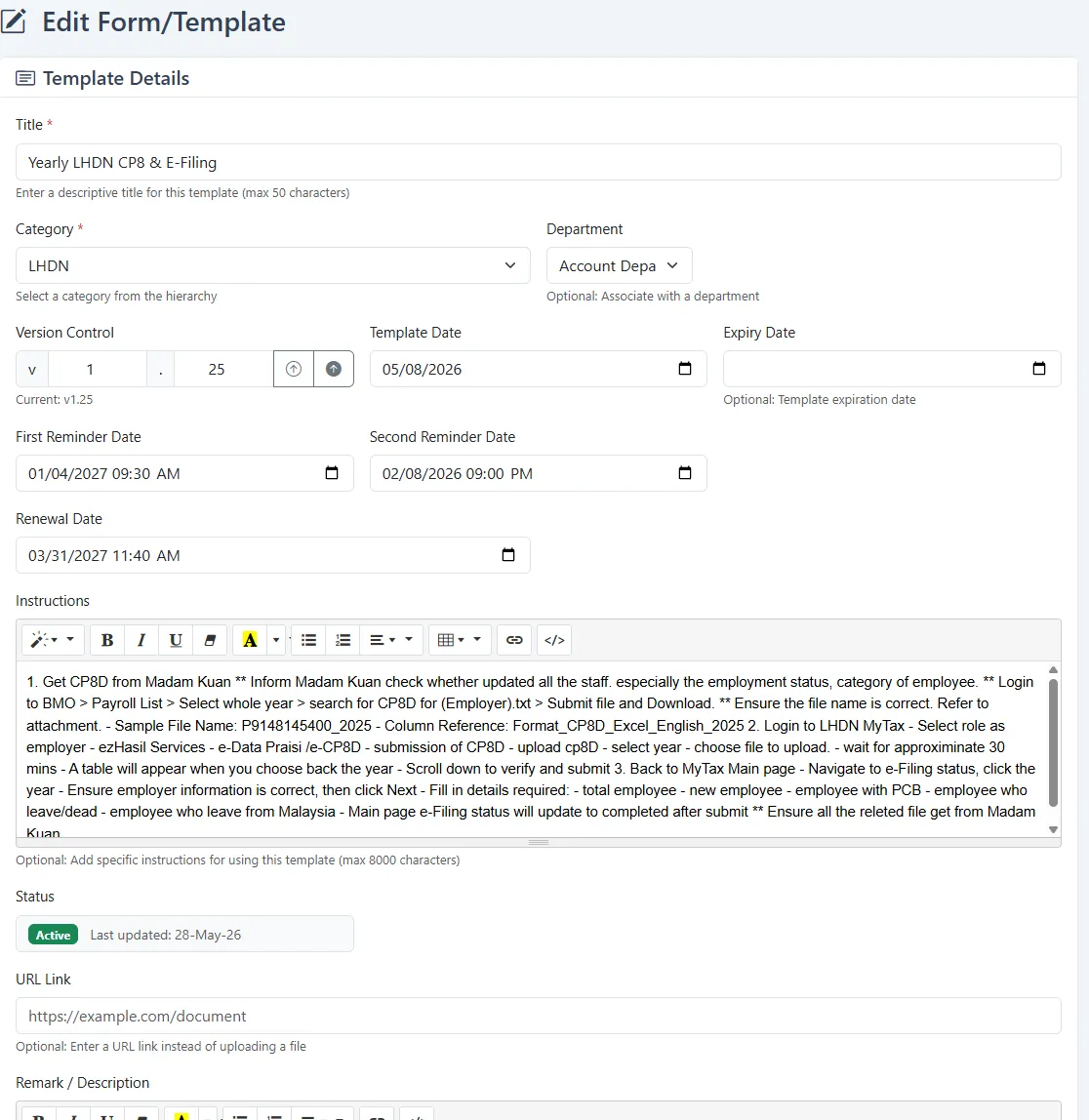
Register the government legislation relevant to the organisation so authorised colleagues have a central reference instead of relying on scattered links, personal bookmarks or undocumented knowledge.
Record Google Workspace accounts, hosting, servers and other subscribed platforms with category, provider, account ID, plan, login URL, cost, billing, renewal date, owner and remarks. Login details can stay with the asset when required.
Maintain portal name, category, registration number, username, password, URL and remarks in a dedicated credential register. Passwords are encrypted and hidden by default, with reveal limited to authorised access.
Install standard commercial-asset or statutory-portal records into the database, then edit them to match the company’s real accounts and authority rules.
The activity calendar provides a shared corporate view of what is happening and who is available. Company events and holidays sit alongside employee leave, giving managers and teams better context for the selected day.
Start with the organisation, then connect each corporate resource to an owner, authority rule and operating routine.
Link the organisation’s shared Drive resources from the main company profile.
Create departments and sections, then keep employee reporting lines current.
Add domains, licences and other expiring assets with the correct dates and evidence.
Configure the renewal communication needed before important corporate assets expire.
Maintain the statutory and government references relevant to company operations.
Add commercial services, account information, costs, renewal context and owners.
Store portal logins, seed useful defaults and assign employee access authority.
Update authority when responsibilities change and avoid unnecessary credential visibility.
Use events, holidays and employee leave together when planning the corporate day.
Explore how the screens and functions in Corporate Workspace support setup, daily operations and continuous improvement.
Connect the organisation’s Google Drive from the main company profile.
Give authorised teams a consistent route to company files and collaborative resources.
Visualise reporting lines and how employees fit across the business.
Create the formal departments used by employee and corporate records.
Define more detailed sections beneath departments for clearer organisation.
Use department and section assignments to keep workforce structure current.
Maintain domains, licences and other renewable corporate assets.
See active, expiring, soon and expired renewal records.
Schedule asset-renewal communication through the central reminder-channel setup.
Maintain relevant statutory or legislative references in a central company register.
Keep the organisation’s government-reference information available to the people who need it.
Record company Google accounts, hosting, subscribed services and other digital business assets.
Classify services such as email/workspace, hosting/server and other commercial platforms.
Keep vendor, account/customer ID, plan and login URL information with the asset.
Record cost, billing arrangement, renewal or expiry and the responsible owner.
Maintain username and password information where the commercial service requires it.
Choose which employees may view or reveal each digital asset.
Store logins for government, statutory and other company portals.
Record portal name, category, registration number, username, URL and remarks.
Keep portal passwords encrypted and hidden by default.
Allow authorised users to reveal a credential only when necessary.
Select the employees permitted to access each corporate portal.
Preserve administrator access while limiting visibility for other employees.
Install standard digital-asset or government-portal records as a database starting point.
Find records by category, name, vendor, account or login context.
Work with portal and digital-asset records without rebuilding information.
Show company events in the shared activity calendar.
Include corporate holidays in the same calendar view.
Display employee leave alongside corporate events and holidays.
Review the selected day to understand company and workforce availability together.
Set departments, sections and reporting lines.
Link Google Drive and register corporate knowledge, assets and legislation.
Record digital services and credentials, then assign access authority.
Use reminders, renewal dashboards and the shared corporate/leave calendar.
Tell us how your team works today. We’ll demonstrate the modules that matter most.
Book your personalised demo →