New asset and renewal
Create a structured record for a domain, licence or another renewable business asset.
Register domains, licences and other renewable assets with ownership context, dates, version information, instructions and supporting files, then monitor expiry risk and upcoming renewals from one searchable dashboard.
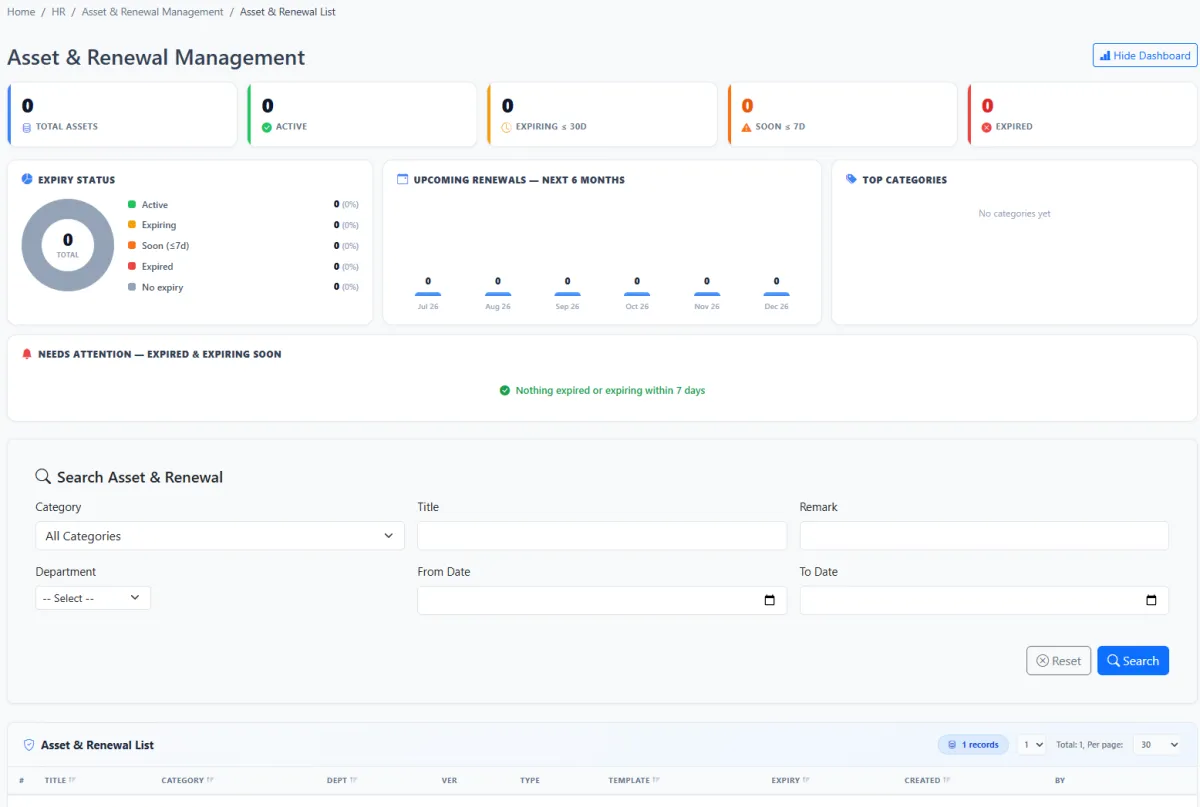
Register domains, licences and other renewable assets with ownership context, dates, version information, instructions and supporting files, then monitor expiry risk and upcoming renewals from one searchable dashboard.
Create a structured record for a domain, licence or another renewable business asset.
Give each asset a clear title that teams can recognise in the renewal list.
Classify renewable records using the organisation’s category hierarchy.
Optionally connect the asset or document to the responsible department.
Maintain a major and minor version reference for versioned assets, forms or templates.
Record the effective date associated with the renewable item.
Set the date on which the asset, licence or related obligation expires.
Define the first internal checkpoint before renewal is due.
Add a later reminder for stronger escalation and follow-through.
Record the planned or completed renewal date.
Keep renewal procedures, usage guidance or operational notes with the asset.
Upload the supporting document directly to the renewal record.
Use a relevant online link instead of, or alongside, a locally stored file.
Create records in bulk when a larger renewal register must be brought into iCRM.
See the current record status as the asset moves through its lifecycle.
Review total assets, active records, items expiring within 30 days, items due within 7 days and expired records.
Compare active, expiring, soon, expired and no-expiry records.
See upcoming renewals distributed across the next six months.
Understand which renewal categories account for the most records.
Surface expired items and those approaching their deadline.
Filter the register by category, title, remark, department and date range.
Review title, category, department, version, type, expiry and record ownership from the list.
Keep important time-bound assets visible so renewal work begins before access or service is interrupted.
iCRM combines the asset record, renewal documentation, staged reminder dates and an expiry-risk dashboard so domains, licences and other time-bound obligations remain visible to the responsible team.
Create a new asset and renewal record with a descriptive title, category and optional department. Add version information, operational instructions and the file or URL colleagues will need when the next renewal action begins.
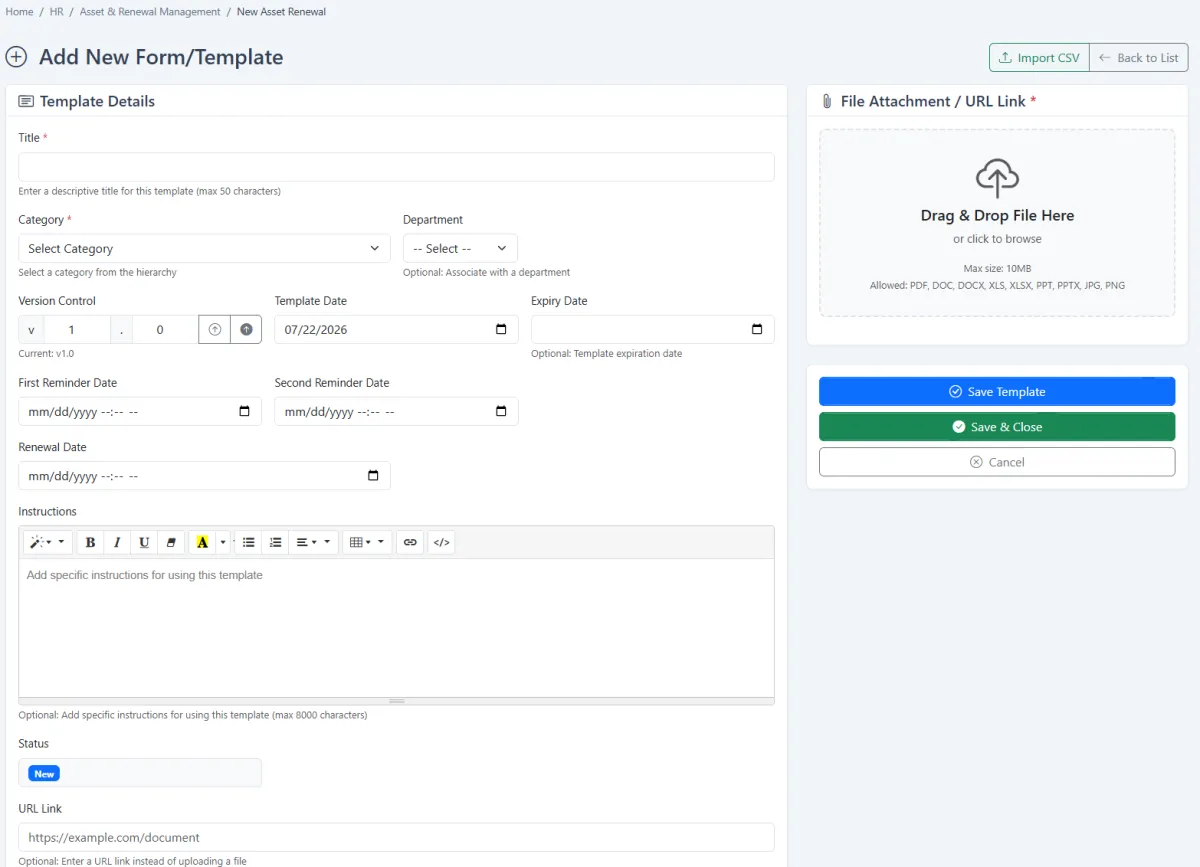
Record the asset or template date and its expiry, then set a first reminder, a second reminder and the relevant renewal date. The staged structure helps the team move from early awareness to final follow-through.
A simple domain may be renewed quickly. A software licence, contract, certificate or regulated document may require budget approval, vendor coordination or updated supporting material.
The renewal dashboard separates the portfolio into active, expiring within 30 days, due soon within 7 days and expired. It also shows expiry status, a six-month renewal outlook, leading categories and the records that need attention now.
Filter by category, title, remark, department or date range, then review the detailed list. The list preserves the asset’s category, department, version, type, expiry, creation information and record owner.
Keep the domain, expiry, renewal evidence and responsible department visible before access is affected.
Track the current version, supporting agreement and the dates needed for budget or vendor action.
Use version control, attachments and staged reminders for other time-bound business records.
Store renewal instructions and supporting links so the next responsible person can continue the process.
Create complete records first, then use the dashboard as the team’s regular renewal-control routine.
Identify the domains, licences and other time-bound assets the organisation must control.
Add a single renewal record manually or use CSV import for a larger register.
Select the category and associate the responsible department where applicable.
Record version information, instructions and the supporting file or URL.
Enter the asset date, expiry, first reminder, second reminder and renewal date.
Monitor 30-day, 7-day and expired records plus the six-month renewal outlook.
Finish the renewal before disruption, then update the record, version and next cycle.
Explore how the screens and functions in Assets & Renewals support setup, daily operations and continuous improvement.
Create a structured record for a domain, licence or another renewable business asset.
Give each asset a clear title that teams can recognise in the renewal list.
Classify renewable records using the organisation’s category hierarchy.
Optionally connect the asset or document to the responsible department.
Maintain a major and minor version reference for versioned assets, forms or templates.
Record the effective date associated with the renewable item.
Set the date on which the asset, licence or related obligation expires.
Define the first internal checkpoint before renewal is due.
Add a later reminder for stronger escalation and follow-through.
Record the planned or completed renewal date.
Keep renewal procedures, usage guidance or operational notes with the asset.
Upload the supporting document directly to the renewal record.
Use a relevant online link instead of, or alongside, a locally stored file.
Create records in bulk when a larger renewal register must be brought into iCRM.
See the current record status as the asset moves through its lifecycle.
Review total assets, active records, items expiring within 30 days, items due within 7 days and expired records.
Compare active, expiring, soon, expired and no-expiry records.
See upcoming renewals distributed across the next six months.
Understand which renewal categories account for the most records.
Surface expired items and those approaching their deadline.
Filter the register by category, title, remark, department and date range.
Review title, category, department, version, type, expiry and record ownership from the list.
Keep important time-bound assets visible so renewal work begins before access or service is interrupted.
Create or import the asset, licence, domain or renewable document.
Add category, department, version, instructions and supporting file or URL.
Set expiry, reminder and renewal dates.
Use the dashboard and searchable list to act before expiry and preserve continuity.
Tell us how your team works today. We’ll demonstrate the modules that matter most.
Book your personalised demo →