Quotation list
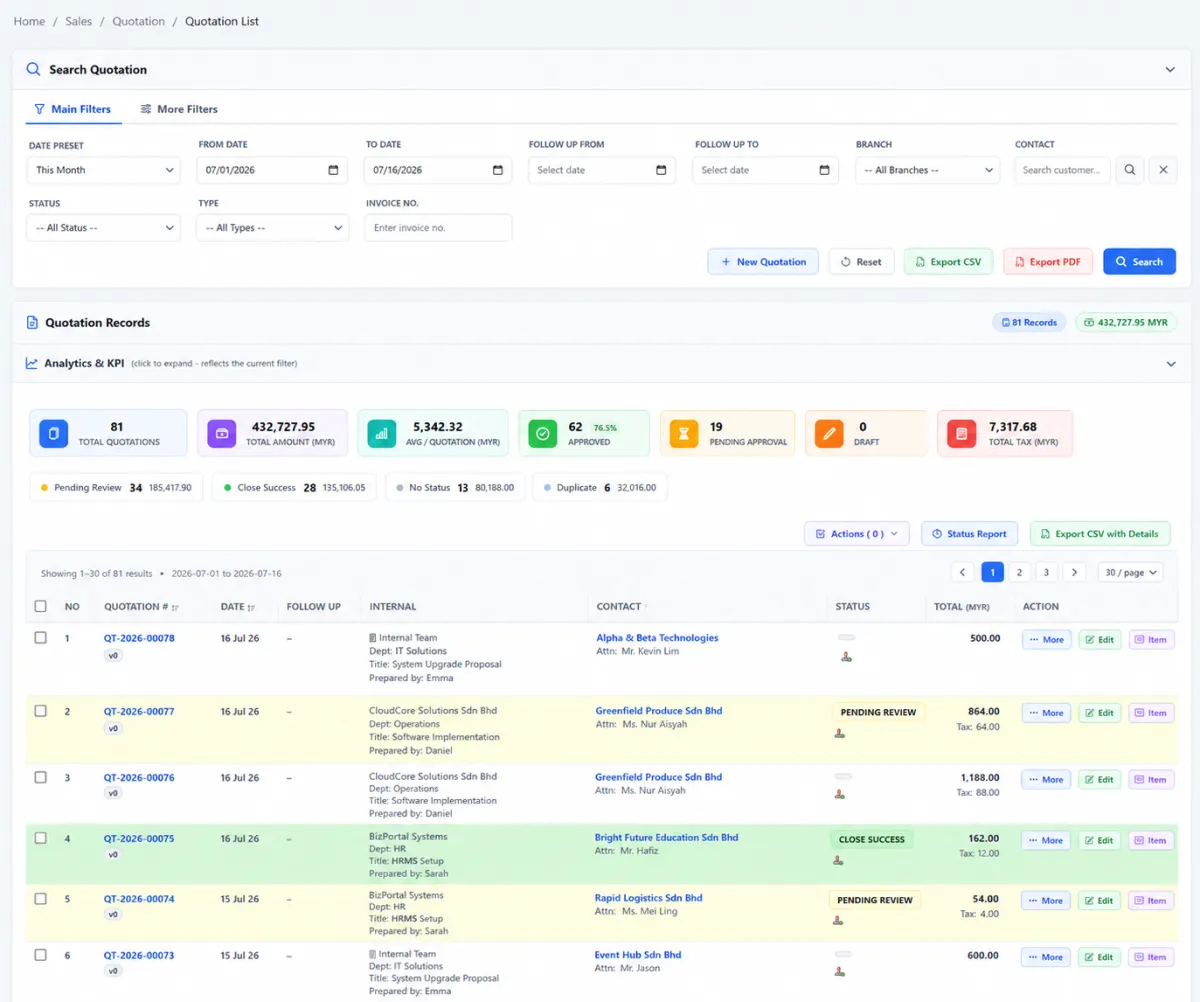
Search, review and manage every quotation from one central working list.
Create quotations on the web or BizCloud app, organise them by status and header, standardise layouts, manage approvals, deliver proposals by email and measure closing performance by quoted item.
Create quotations on the web or BizCloud app, organise them by status and header, standardise layouts, manage approvals, deliver proposals by email and measure closing performance by quoted item.
Search, review and manage every quotation from one central working list.
Create and work with quotations from the BizCloud companion app when away from the desktop.
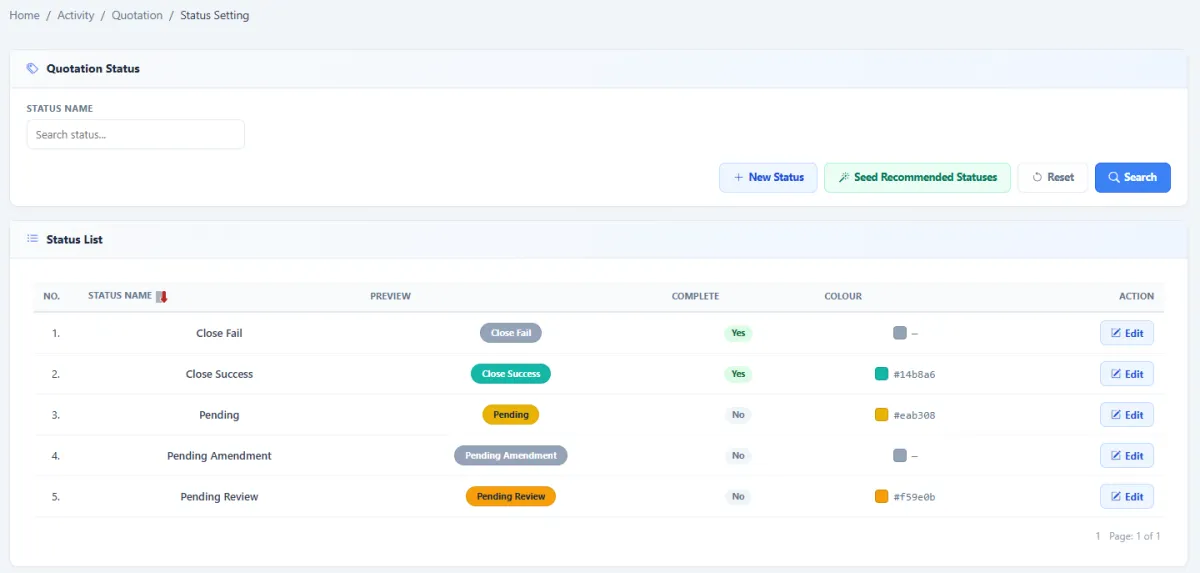
Create the statuses that match your sales process.
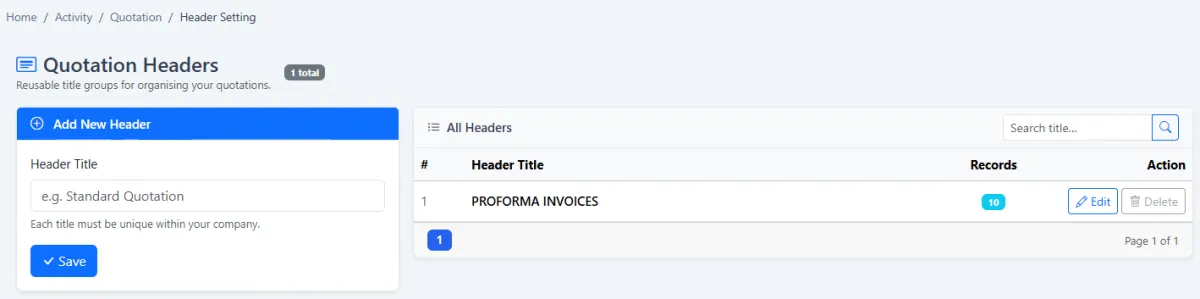
Use quotation headers to organise different proposal types.
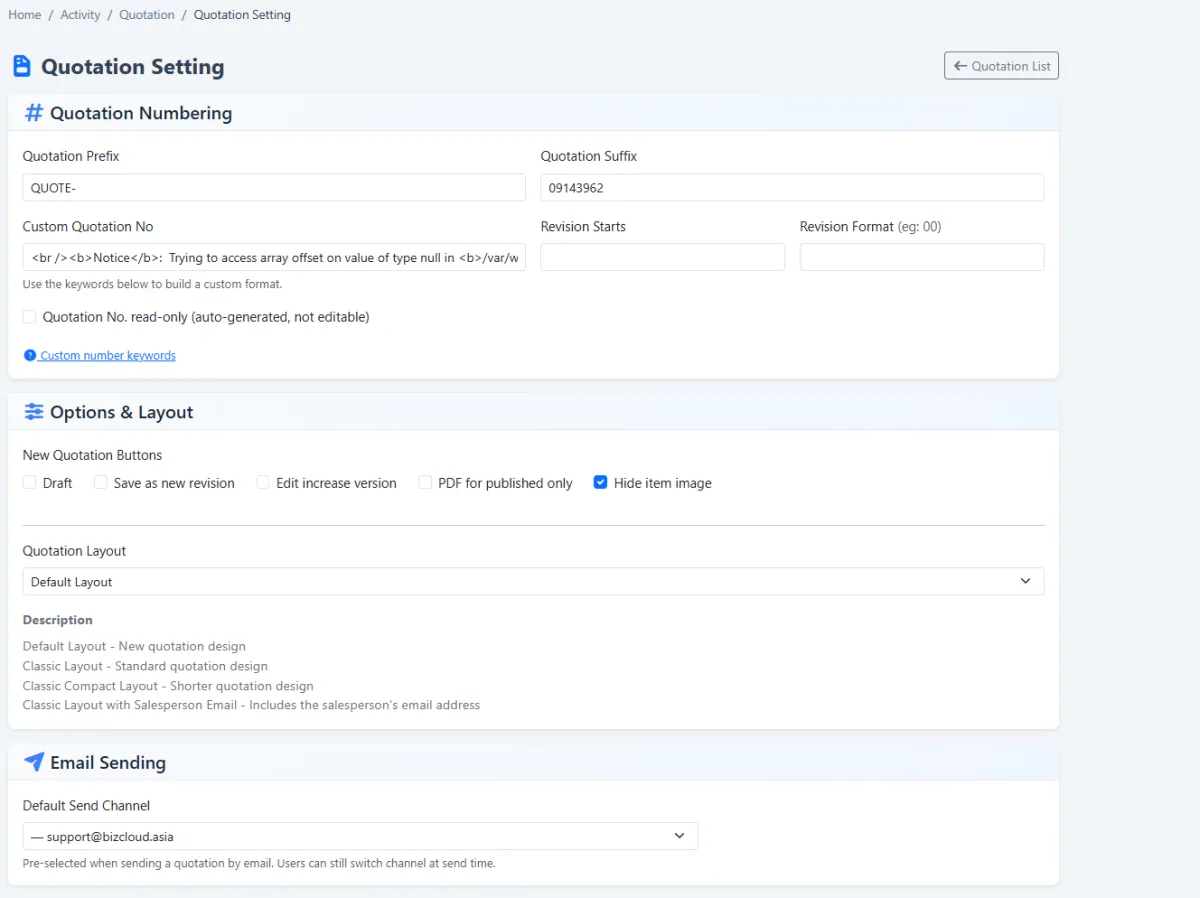
Control the standard quotation layout and default information.
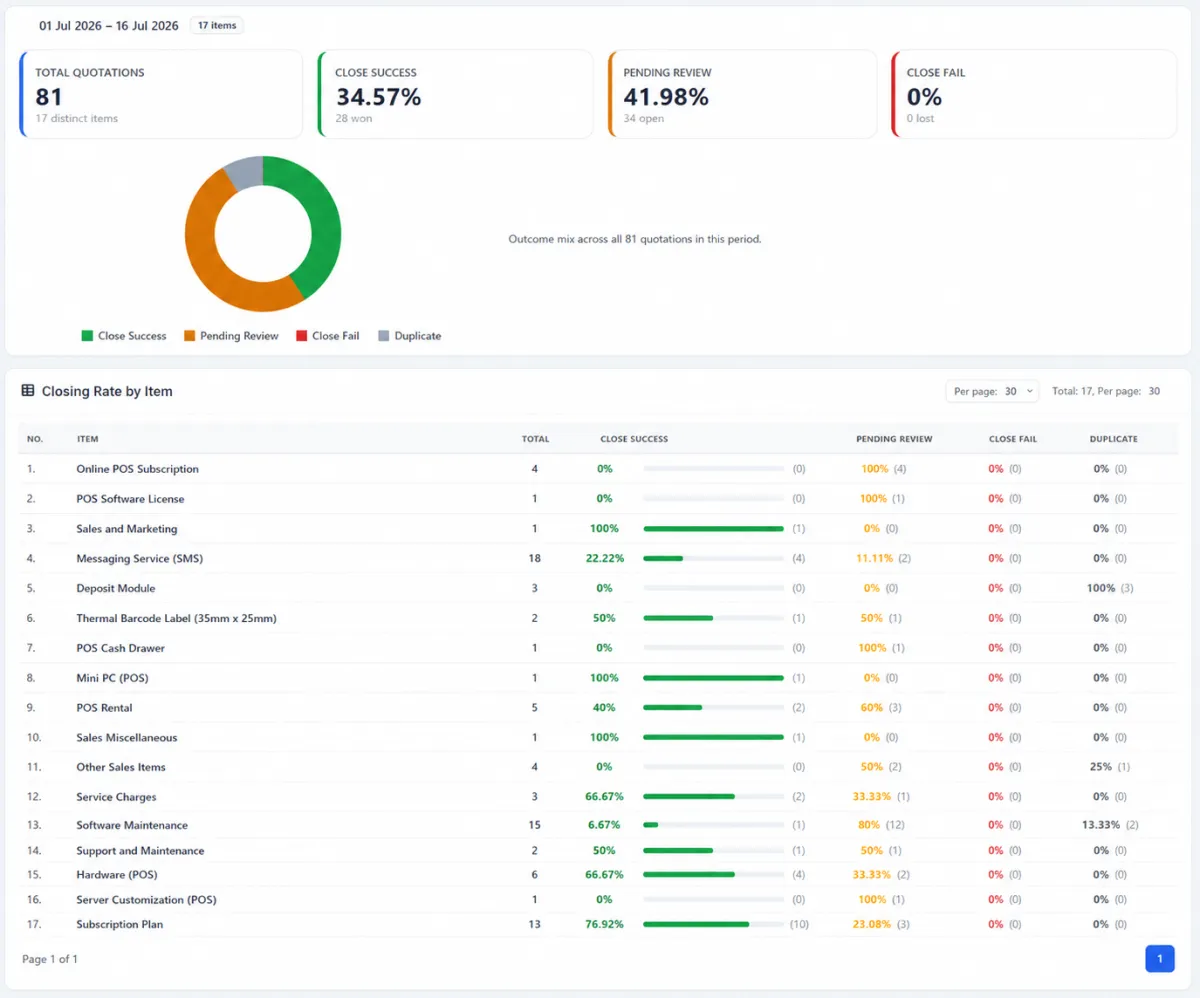
Measure closing rates based on the items included in quotations.
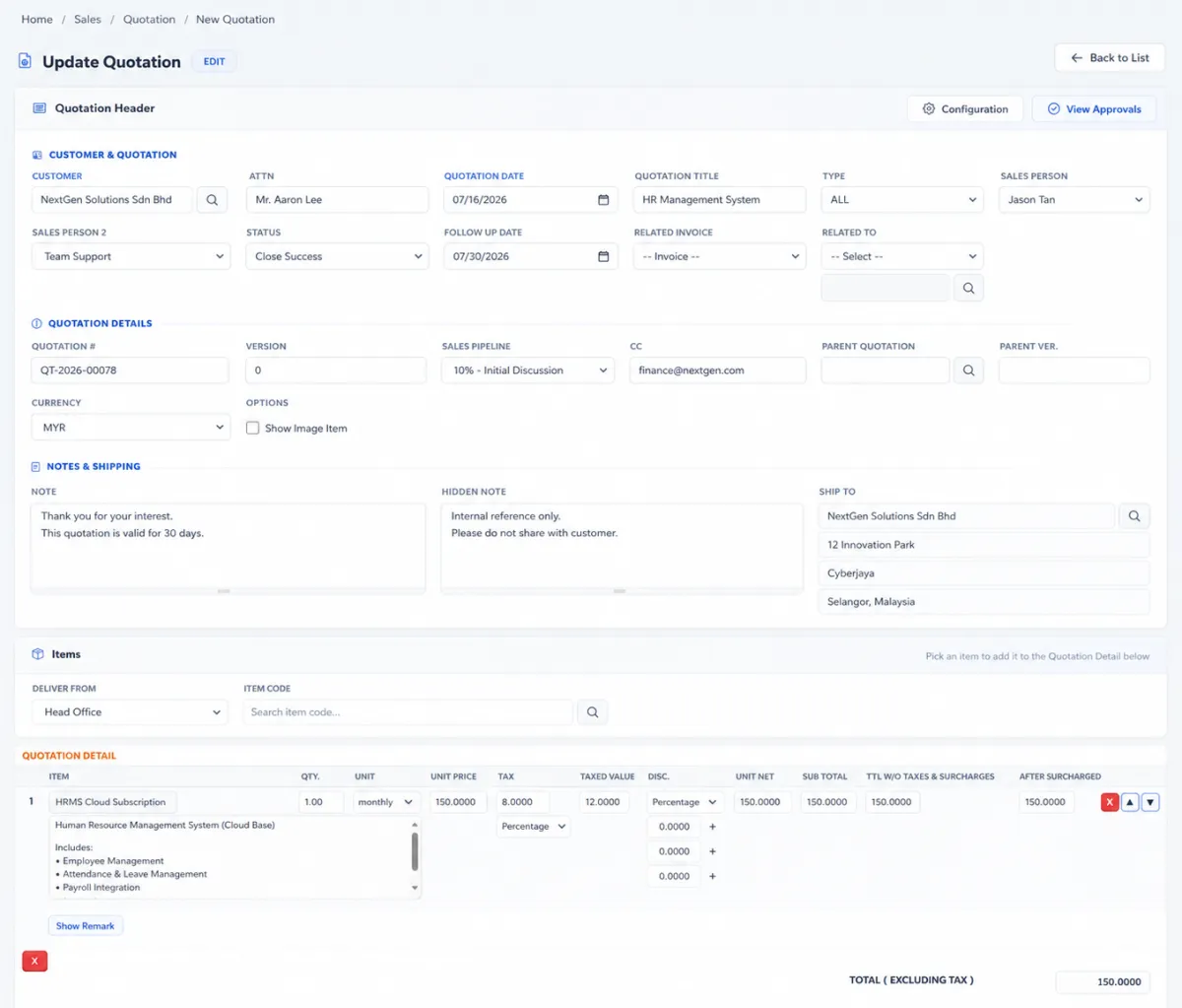
Build quotations from the web interface or BizCloud app.
Add quotation items, quantities, pricing and the information required for a clear customer proposal.
Send the quotation to a colleague for checking, follow-up or onward delivery.
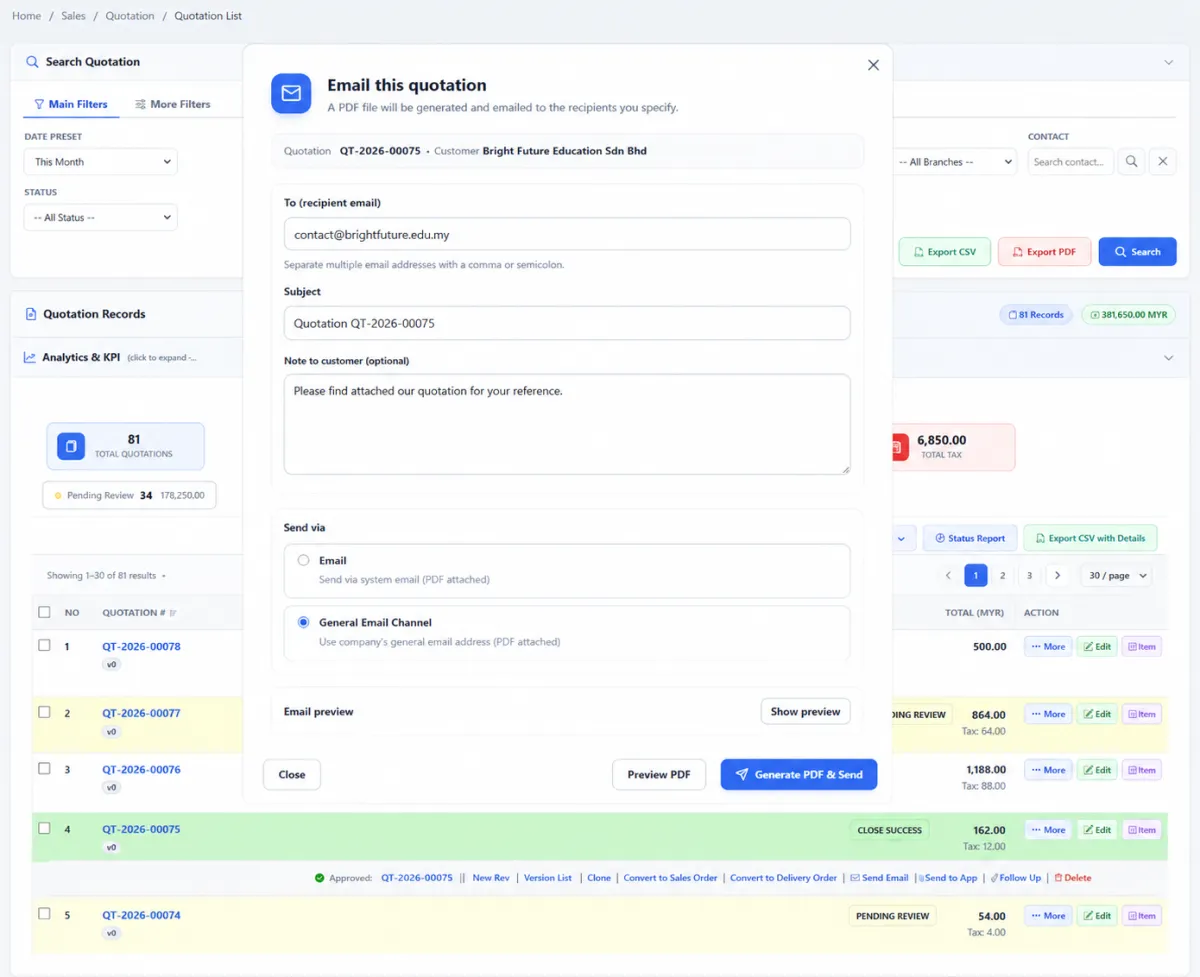
Send the completed quotation and PDF directly to the intended customer.
For a familiar customer reply path, salespeople can send the quotation to their own work email first, then forward it from their normal mailbox.
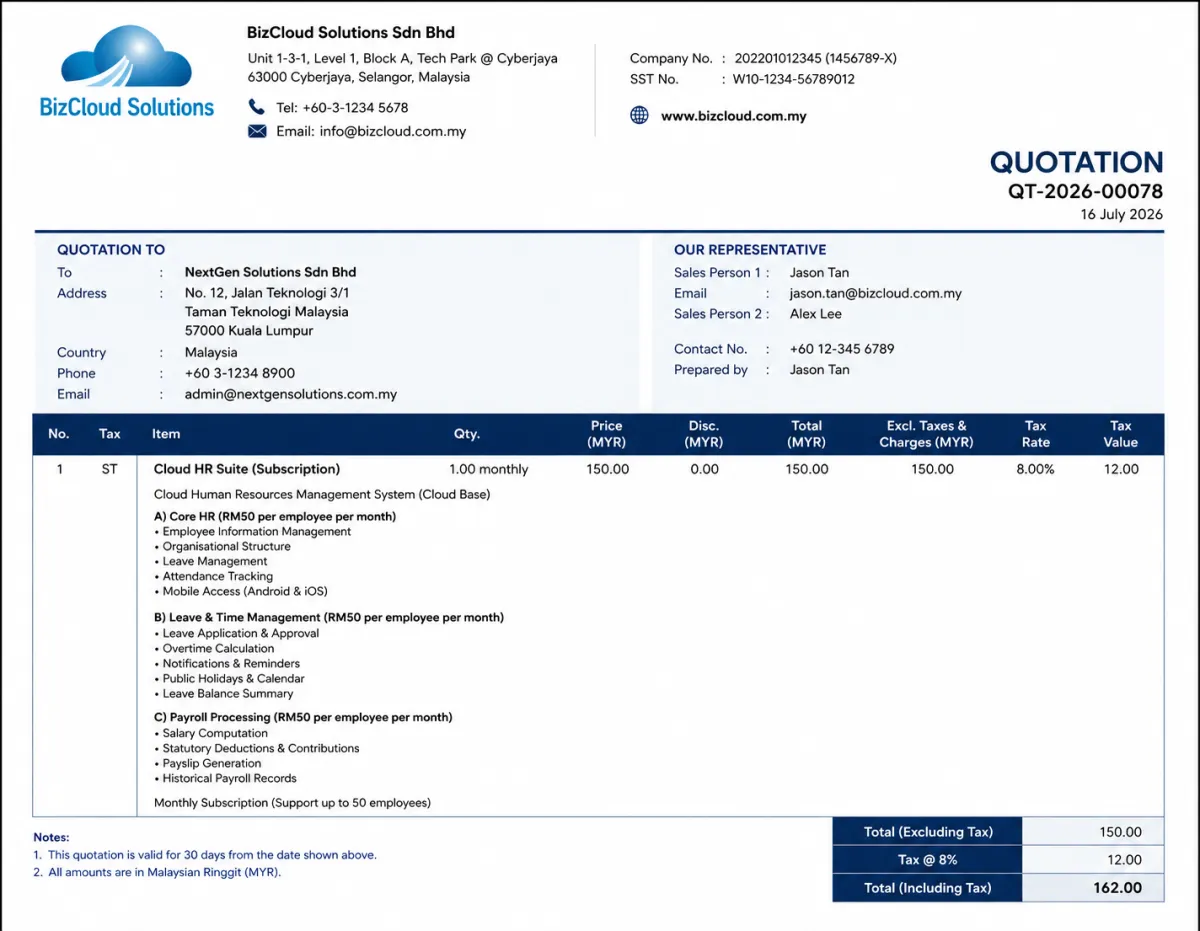
Generate and attach a customer-ready quotation PDF to the outgoing email.
Define who must approve quotations before they progress.
Route submitted quotations through the required sequence of approvers.
Give approvers a clear quotation approval list for review and action.
Keep the quotation linked to the customer relationship and downstream service activity.
iCRM connects the rules behind a quotation with the salesperson’s daily workflow, management approval, customer delivery and the analysis that improves future sales.
Create quotation statuses that reflect how your team works—from draft and review to approved, sent, won or lost. Quotation headers provide a second practical layer for categorising different proposal types, business units or document series.
Set the information that should appear by default and maintain a consistent quotation presentation. This reduces repetitive entry and helps every salesperson produce documents that follow the organisation’s preferred format.
Start from the central quotation list, open an existing proposal or create a new one. Add the customer, items, quantities, pricing and commercial information, then save changes as the opportunity develops.
Build quotation approval sets for the people or roles responsible for commercial control. When a quotation needs approval, submit it into the defined flow and let each approver work from a clear approval list.
Salesperson preparesCompletes customer, item and pricing details.
Approval set appliesThe configured reviewers determine the route.
Approvers reviewEach reviewer acts from the quotation approval list.
Approved for deliveryThe controlled quotation is ready to send.
Send the quotation to internal staff for review or directly to an external customer. iCRM creates a clear email with the quotation PDF attached.
When the salesperson wants customer replies to remain in their normal work mailbox, send the quotation to the salesperson’s own email first. They can then forward it to the customer from their usual email account, making the reply path familiar and easy to follow.
The quotation item summary measures closing performance based on the items included in quotations. Use the result to understand product interest, compare conversion and improve how the team packages future proposals.
Set the commercial controls once, then give salespeople a repeatable process for every new opportunity.
Create the draft, approval, sent, won, lost and other stages that match your process.
Organise proposal categories and define the default customer-facing information.
Start from the quotation list or BizCloud app, then add the customer and commercial details.
Complete item, quantity and pricing information before submitting the document.
Apply the correct approval set and monitor the quotation through the approval queue.
Email internally, directly to the customer, or through the salesperson’s mailbox for a clearer reply loop.
Use the item summary to understand what converts and improve the next quotation.
Explore how the screens and functions in Quotation Management support setup, daily operations and continuous improvement.
Search, review and manage every quotation from one central working list.
Create and work with quotations from the BizCloud companion app when away from the desktop.
Create the statuses that match your sales process.
Use quotation headers to organise different proposal types.
Control the standard quotation layout and default information.
Measure closing rates based on the items included in quotations.
Build quotations from the web interface or BizCloud app.
Add quotation items, quantities, pricing and the information required for a clear customer proposal.
Send the quotation to a colleague for checking, follow-up or onward delivery.
Send the completed quotation and PDF directly to the intended customer.
For a familiar customer reply path, salespeople can send the quotation to their own work email first, then forward it from their normal mailbox.
Generate and attach a customer-ready quotation PDF to the outgoing email.
Define who must approve quotations before they progress.
Route submitted quotations through the required sequence of approvers.
Give approvers a clear quotation approval list for review and action.
Keep the quotation linked to the customer relationship and downstream service activity.
Set statuses, headers, layout defaults and approval rules.
Create the quotation on web or BizCloud and add items.
Submit it to the correct approval set and queue.
Deliver the PDF, maintain the reply path and review item closing rates.
Tell us how your team works today. We’ll demonstrate the modules that matter most.
Book your personalised demo →