Contact database
View and maintain a complete, searchable customer and prospect list.
Manage the complete customer lifecycle—from first contact and files to quotations, service history, after-sales care, reminders and analysis.
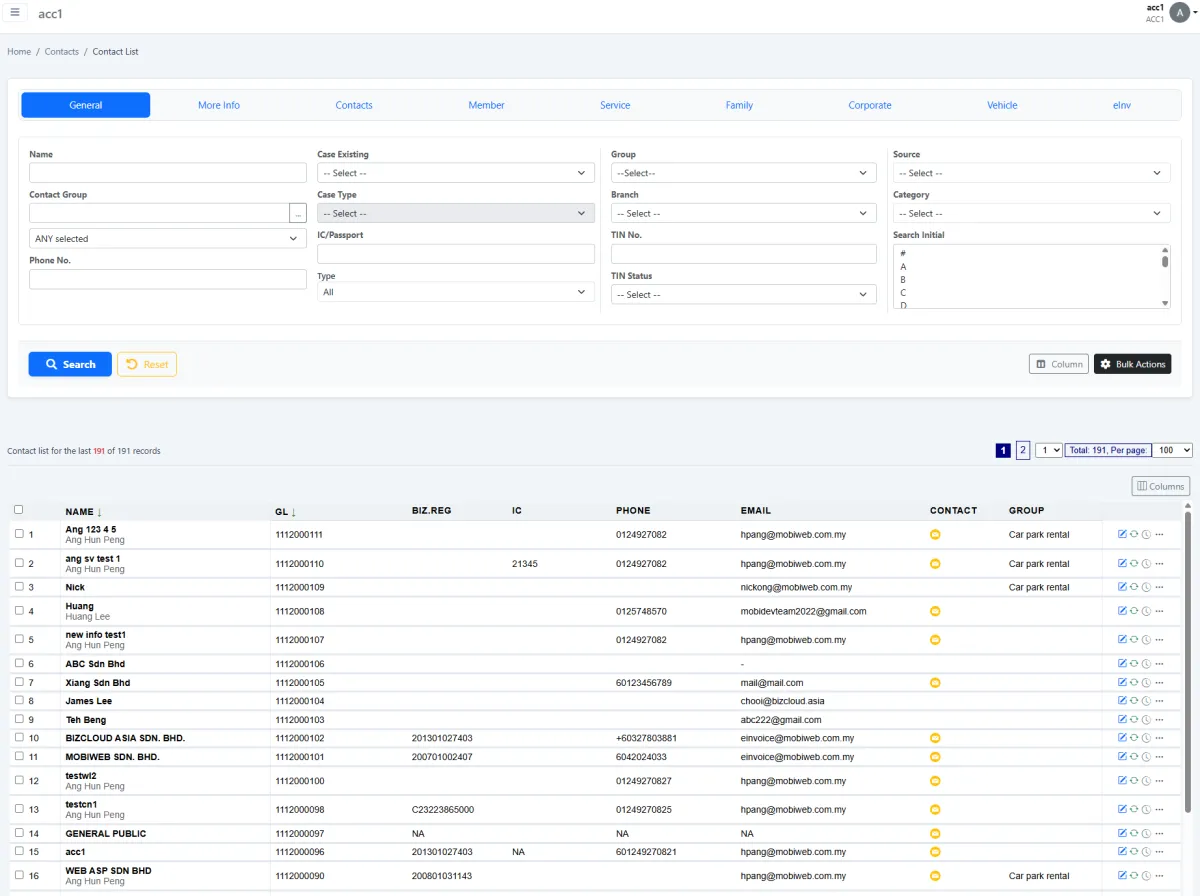
Manage the complete customer lifecycle—from first contact and files to quotations, service history, after-sales care, reminders and analysis.
View and maintain a complete, searchable customer and prospect list.
Store company, personal, relationship and operational information in one record.
Keep agreements, supporting documents, certificates and other customer files with the relationship.
Segment contacts and manage contact-group categories for targeted work.
Capture where every contact came from and report on source performance.
Set customer-specific payment and credit terms for downstream commercial workflows.
Store billing information, TIN and other e-Invoice-ready details.
Let salespeople schedule, mark and email follow-ups from their own queue.
Keep an auditable log of important customer interactions.
Create, send and review quotations without losing the customer context.
See service records, parent-child case chains and product problems associated with the customer.
Continue from a completed sale into support, warranty, maintenance and follow-on service work.
Schedule birthday and relationship reminders through the central reminder channel.
Assign contacts to colleagues while preserving ownership history and next actions.
Give authorised colleagues access to the contact list from the BizCloud companion app.
Review customer-source reports to understand which acquisition channels produce valuable contacts.
Use logs, open follow-ups, quotation status and service-chain health to check the relationship at a glance.
iCRM connects sales, documents, service and communication so your team can understand what happened, what is open and what should happen next.
Start from the contact list, then maintain comprehensive personal, company, billing and relationship information. Upload the documents your team needs so information does not live in disconnected folders.
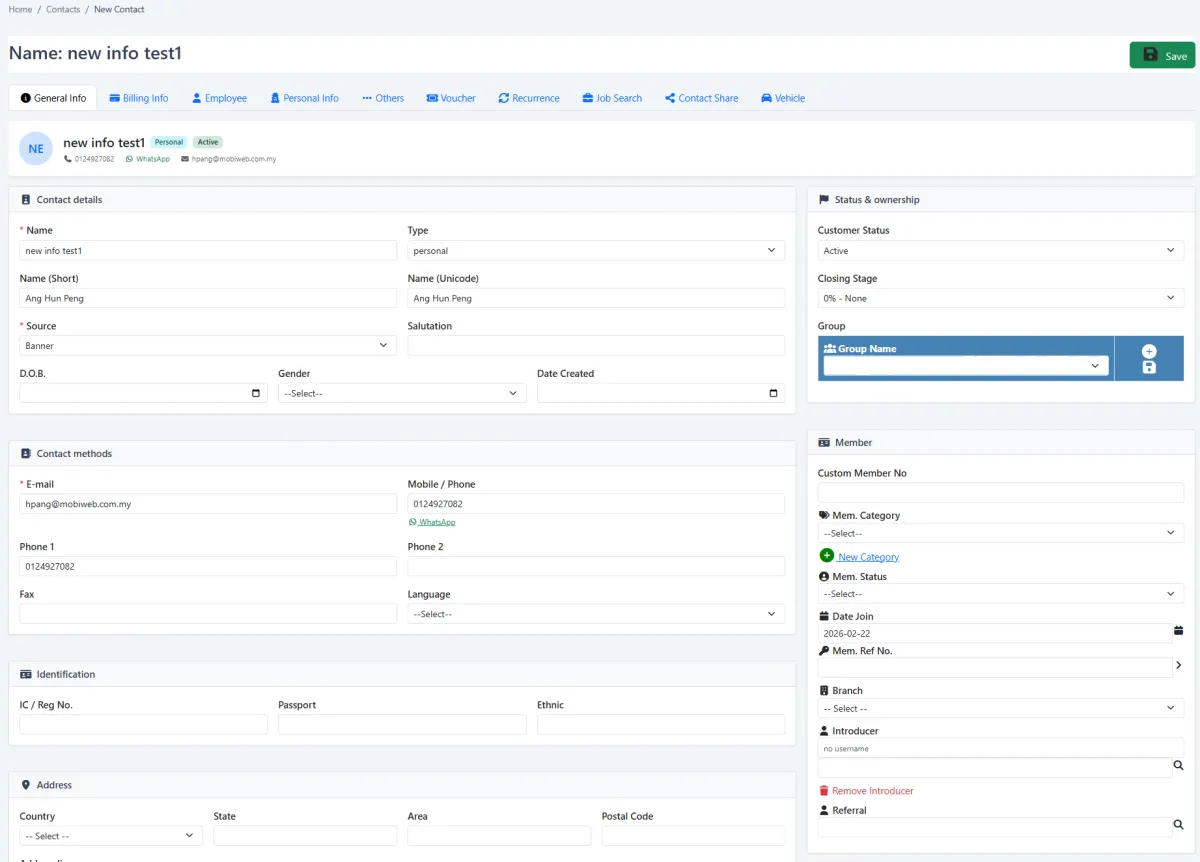
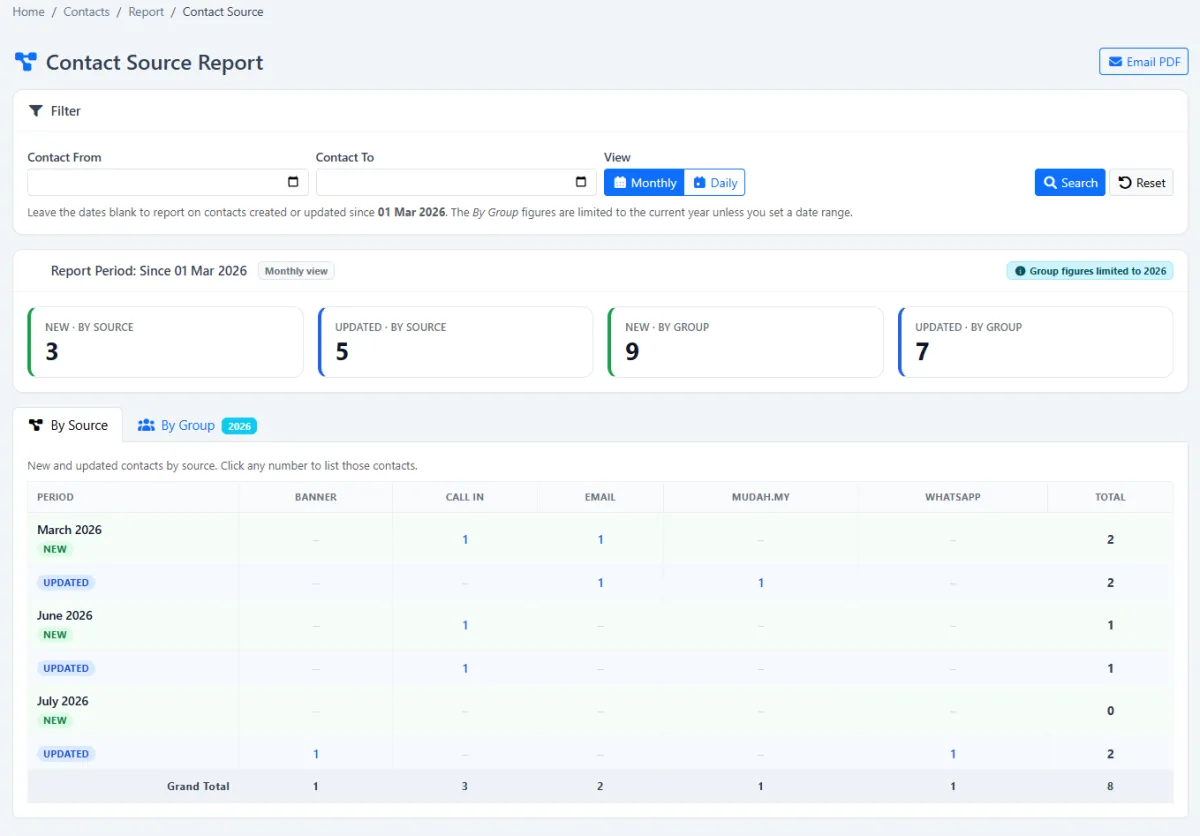
Create practical contact groups, categorise those groups and record where each relationship came from. Source reporting then shows which acquisition channels are building your database.
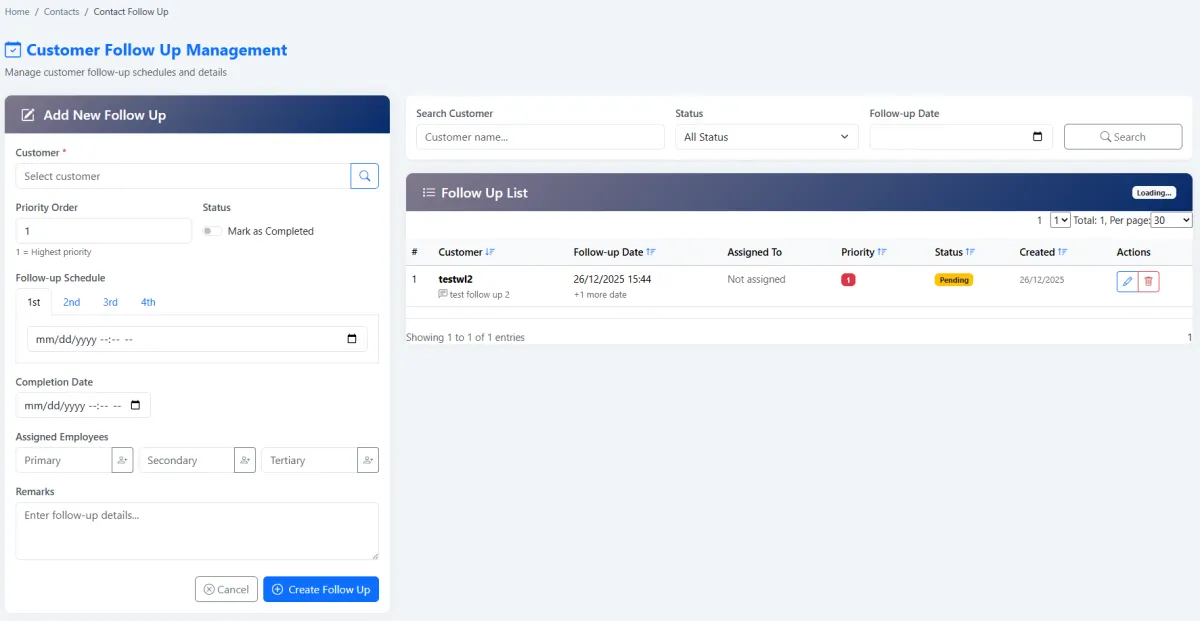
Assign a customer to the right colleague, manage personal follow-up queues and mark each action when completed. Follow-up information can also be emailed when coordination is needed.
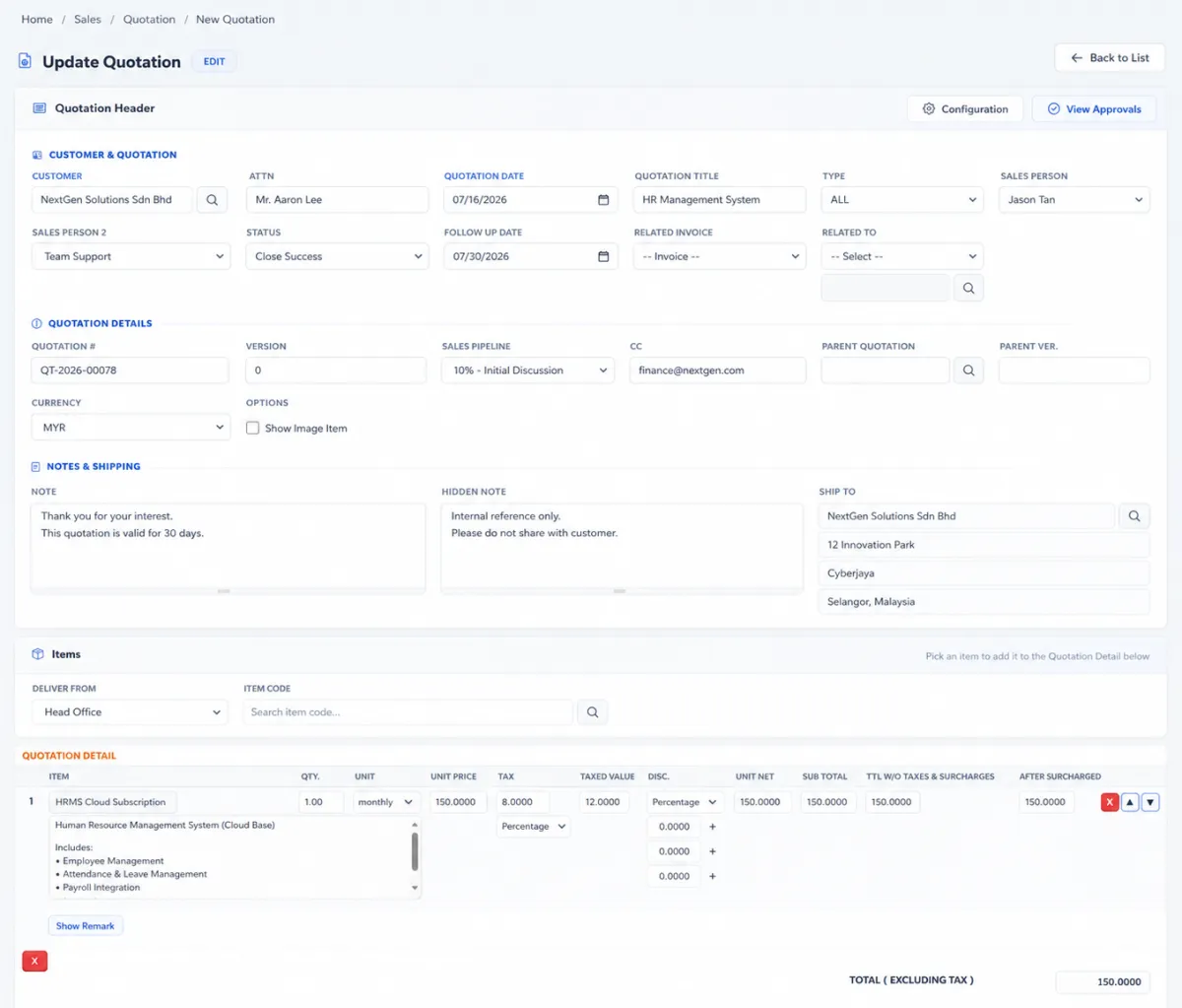
Prepare a quotation, add products or services, follow the approval flow and send the finished proposal. The customer record remains the commercial starting point for the sale.
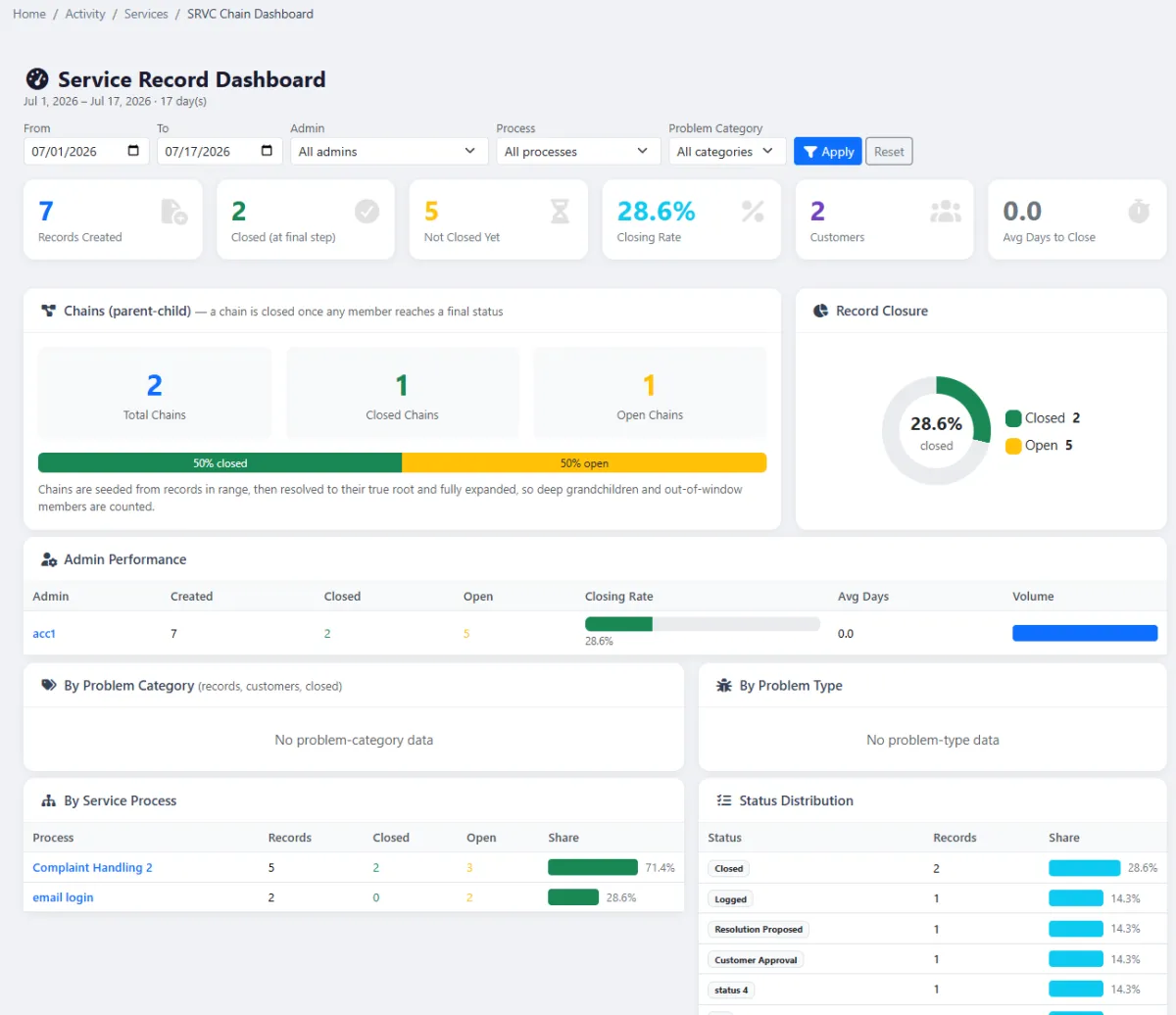
Create service records for delivery, support, warranty or maintenance. Parent and child records preserve the whole case chain, including status, product problems and links to quotations or invoices.
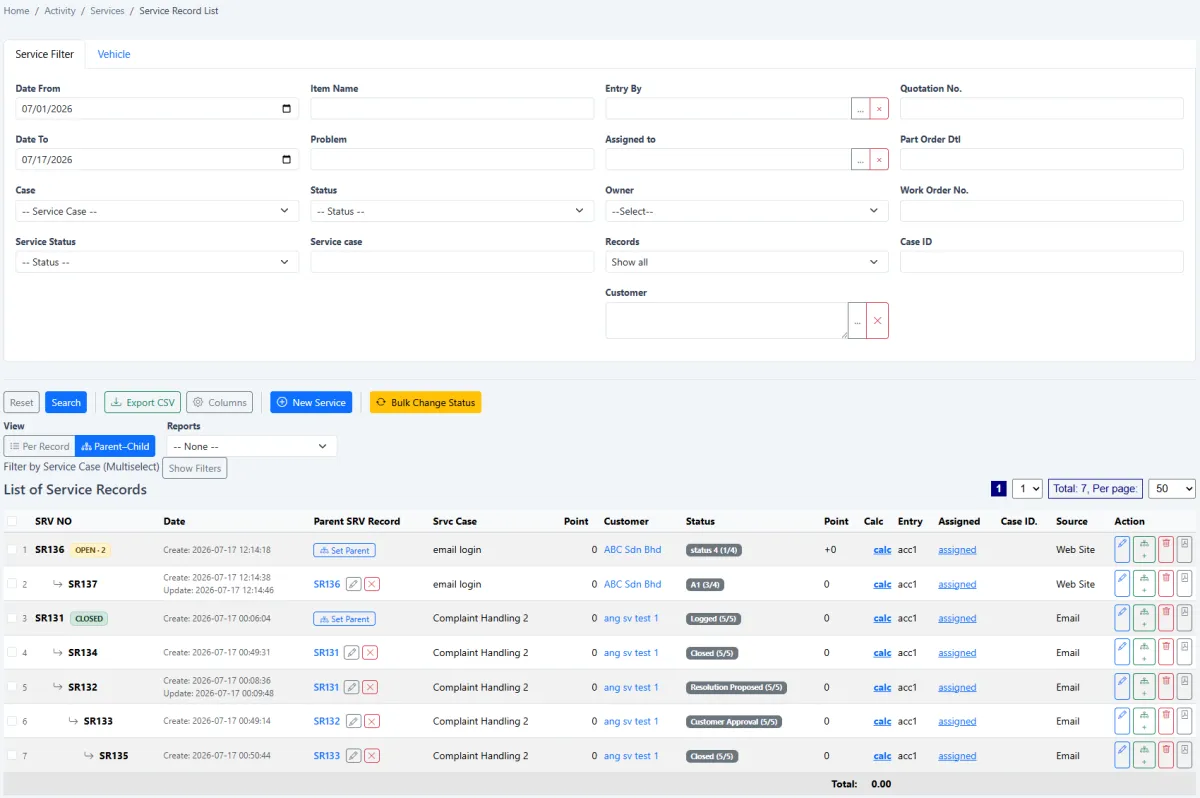
Review the customer’s parent and child service-record chain before taking the next action. The connected view shows how one enquiry develops into follow-up work and whether the complete chain has reached its final step.
The exact fields and approvals can match your organisation, while the underlying lifecycle remains clear.
Add the contact, company details, source, files, billing information and e-Invoice data.
Choose the right groups and categories, then assign a colleague as the relationship owner.
Create a follow-up, reminder or appointment and mark it when the customer is contacted.
Add products or services, complete approval and send the finished quotation by email.
Open service records for fulfilment or after-sales work and track the complete case chain.
Check logs, service history, open actions, birthdays and source performance before planning the next engagement.
Explore how the screens and functions in Customer CRM support setup, daily operations and continuous improvement.
View and maintain a complete, searchable customer and prospect list.
Store company, personal, relationship and operational information in one record.
Keep agreements, supporting documents, certificates and other customer files with the relationship.
Segment contacts and manage contact-group categories for targeted work.
Capture where every contact came from and report on source performance.
Set customer-specific payment and credit terms for downstream commercial workflows.
Store billing information, TIN and other e-Invoice-ready details.
Let salespeople schedule, mark and email follow-ups from their own queue.
Keep an auditable log of important customer interactions.
Create, send and review quotations without losing the customer context.
See service records, parent-child case chains and product problems associated with the customer.
Continue from a completed sale into support, warranty, maintenance and follow-on service work.
Schedule birthday and relationship reminders through the central reminder channel.
Assign contacts to colleagues while preserving ownership history and next actions.
Give authorised colleagues access to the contact list from the BizCloud companion app.
Review customer-source reports to understand which acquisition channels produce valuable contacts.
Use logs, open follow-ups, quotation status and service-chain health to check the relationship at a glance.
Create the profile, upload files and record customer source.
Set groups, billing, e-Invoice details and debtor terms.
Assign the contact, follow up, create and send quotations.
Track service history, after-sales work, reminders and analysis.
Tell us how your team works today. We’ll demonstrate the modules that matter most.
Book your personalised demo →